
“You copy a colleague’s good session with one tap, and from then on it’s yours”
Koach founder Dennis Boekhout on sharing session templates within a club: who can see them, how you take one over, and what version 3.1 added for the gym, from the drill picker to paging on to the next drill.
In Koach a coach saves a session that works as a template, so they can put it back with one tap next time. Those templates belonged to a single team. A coach of the team next door could not see them, not even if they coached in the same club.
In September a club asked to be able to share practice plans between coaches. Since the end of September, Copy plan also lists the templates of the other teams in the club. Dennis Boekhout explains how you take over a session like that, and what version 3.1 added for the gym.
What did that club ask for?
“Whether the coaches in the club could use each other’s practice plans. That was the whole question, and a very reasonable one.
“Only it wasn’t possible. A template belonged to one team, and a coach could only read the templates of their own teams. So two coaches in the same club were each sitting on their own island in the app.”
So what did you build?
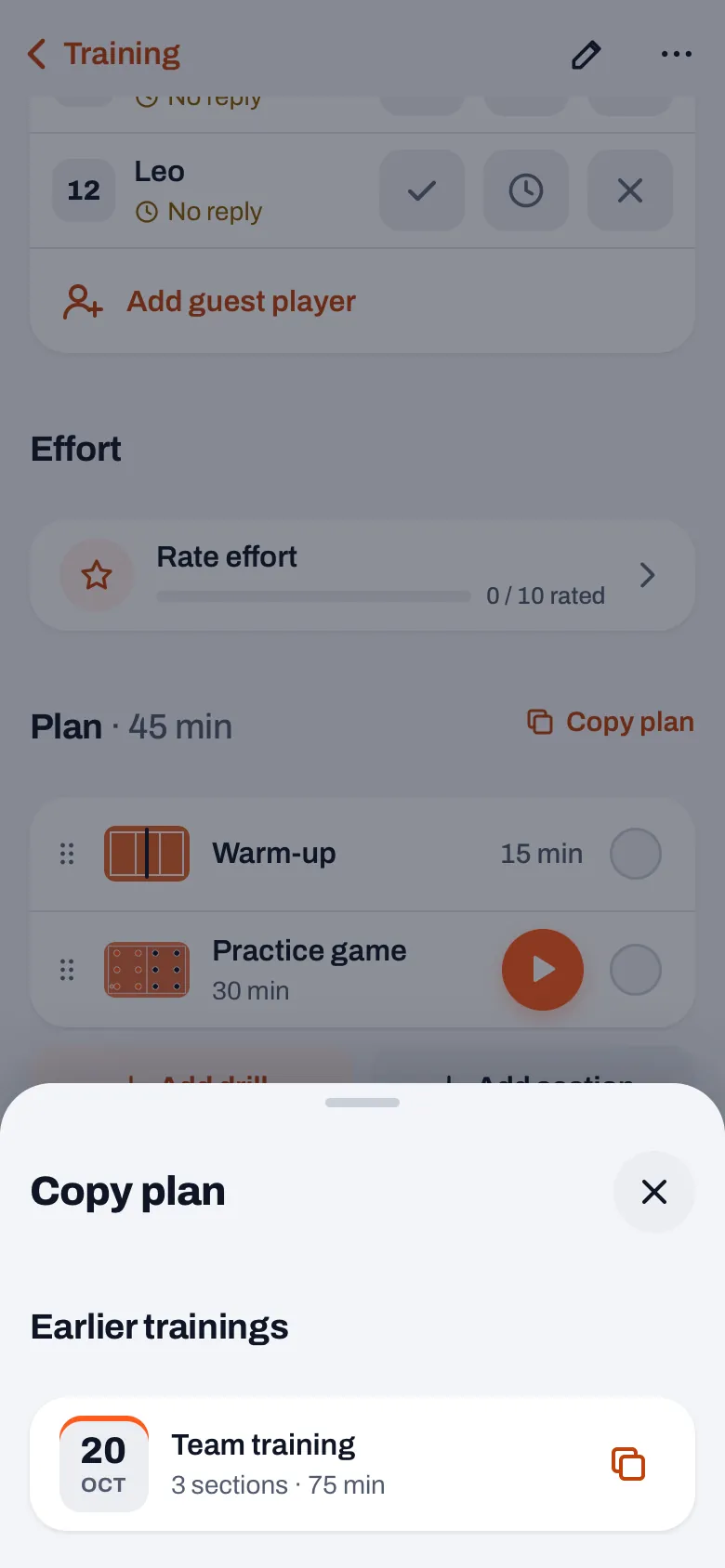
“Since the end of September, ‘Copy plan’ also shows what the other teams in the club have saved as a template. You open a session, tap ‘Copy plan’ next to the plan, and under Club templates you find your own templates and those of the other teams, with the team’s name underneath.
“Below that are your earlier sessions, as always. So it’s not a separate library you have to go looking for. It sits right where you already pick up a plan.”
Who sees another team’s templates, and who doesn’t?
“Anyone who coaches in that club: the owner or a coach of a team in the club, or someone with a club role. Players and parents see nothing. A practice plan is working material for the coaches, not a club announcement.
“And you only see the club of the team you have open. If you coach in two clubs, their templates don’t get mixed up, not even if they both have a Women’s 1.”
So can a colleague change your template too?
“No. They see it, they copy it, and that’s where it ends. Nothing is ever written to your team. Whatever they copy goes into their own session as new sections, and from that moment on it’s theirs.
“Same the other way round. You don’t have to worry about ruining your colleague’s session if you take ten minutes out of it.”
You take over a colleague’s session. Then what?
“One tap on the template, and the sections appear at the bottom of your plan, with their name, duration and explanation. A message pops up with Undo, in case you picked the wrong one. If your session didn’t have a note yet, the template’s note comes along too.
“Then you adjust whatever suits your group: one section shorter, one section out, a drill you’d rather run yourself. Someone else’s plan is a starting point, not a prescription.”
The drill picker changed in version 3.1. What’s different?
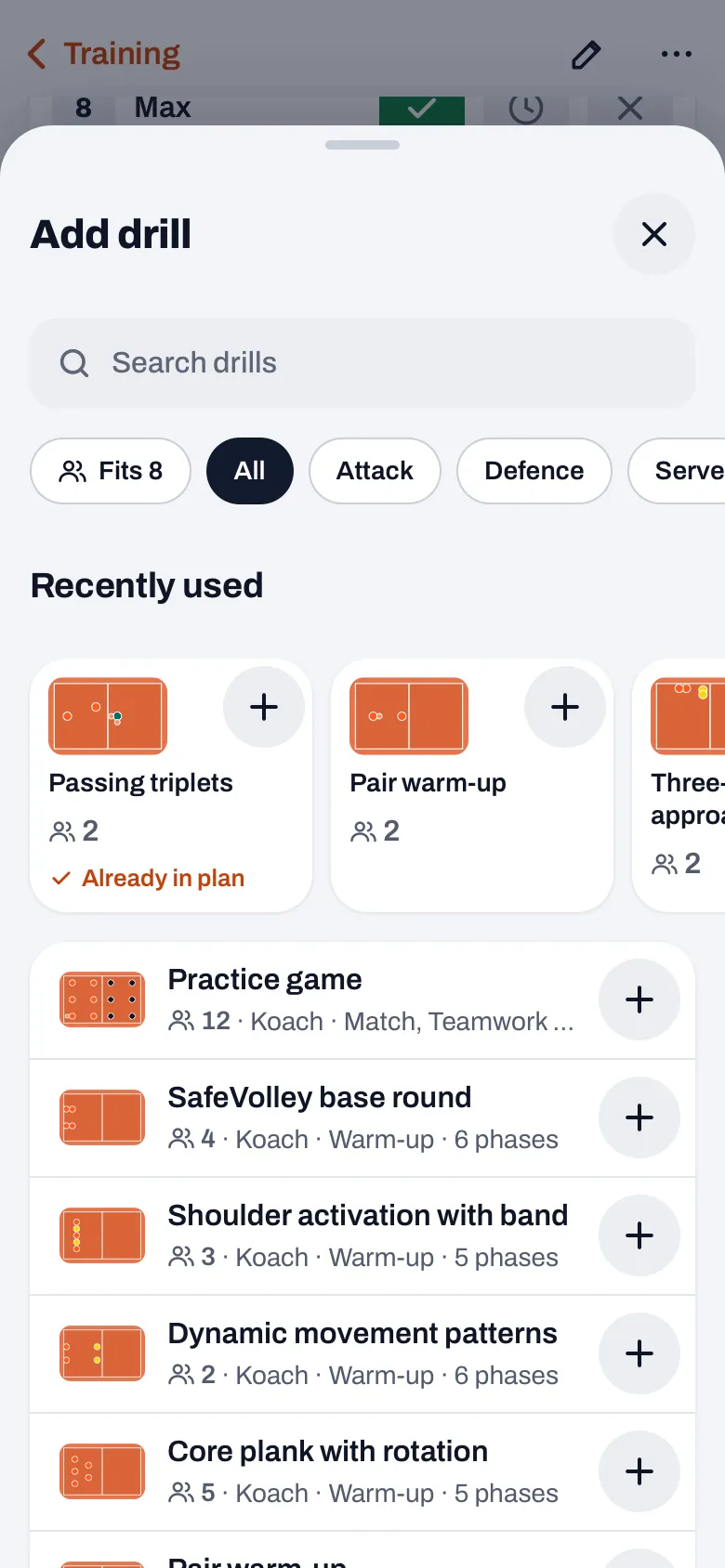
“If you tap ‘+ Add drill’ under your plan, the top now shows ‘Recently used’: the eight drills that were most recently in your sessions. Anything already in this session gets the tag ‘Already in plan’. You can still pick it, but you can see you’re putting it in twice.
“And every drill now shows how many players it’s for. I added that myself, because that’s the first question with any drill: does it fit the group that’s going to be standing there?”
What exactly does ‘Fits’ do?
“It’s a filter. The number is whoever is coming to that session, plus the guest players. If nobody has said yes yet, the app counts your active players minus whoever declined. Tap it, and you only see drills for that number of players or fewer.
“A drill of your own without any player figures has no number, so it doesn’t get filtered out either. The filter only hides what definitely doesn’t fit.”
And in the gym itself? How do you get from one drill to the next?
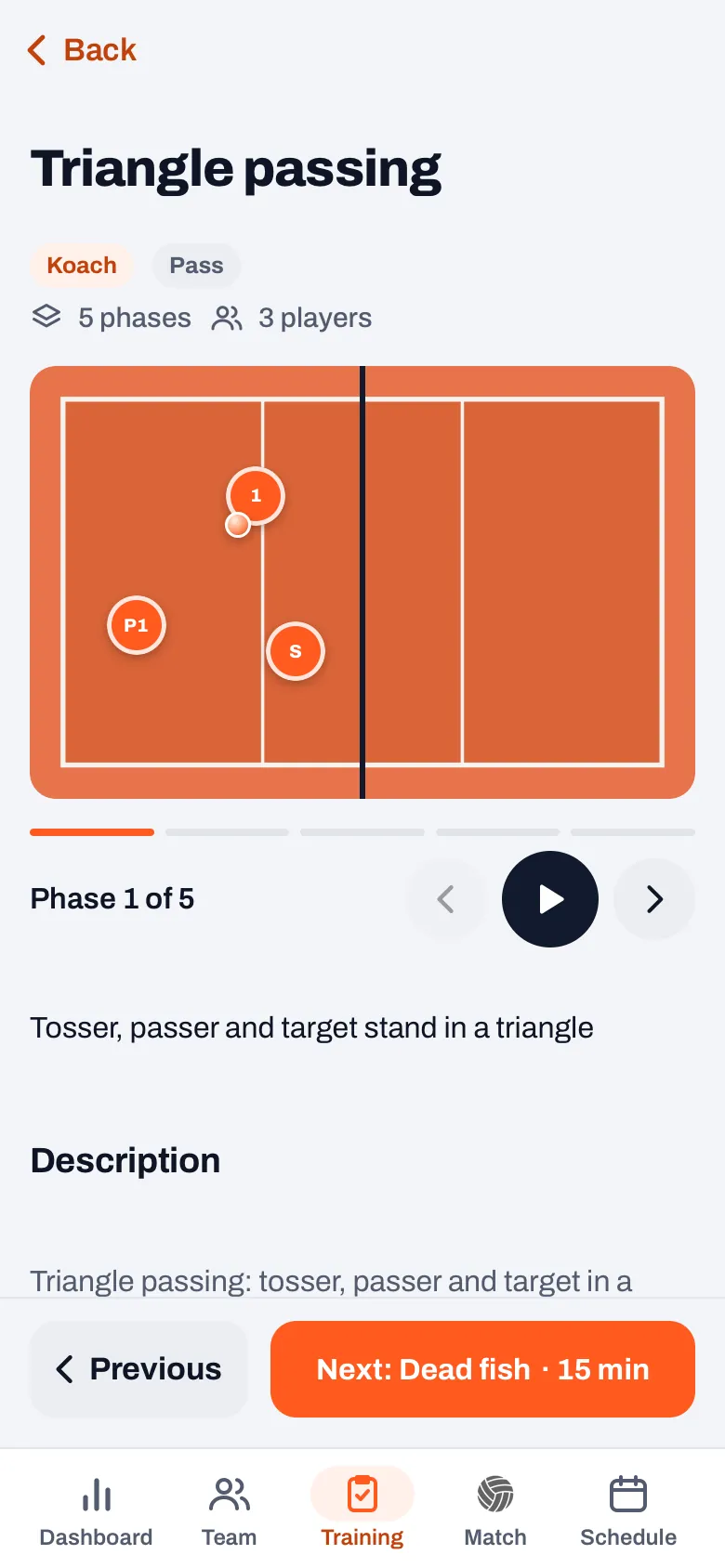
“Tap the little court of a section in your plan, and the drill opens. At the bottom you then get ‘Previous’ and ‘Next’, with the name and duration of the next drill. That way you page through your session in the order of your plan. A section without a drill gets skipped.
“Every time, the drill starts at phase 1 with the animation paused, so you play it when your group is ready for it. Back takes you to the same spot in your plan.”
Was there anything in the picker that didn’t work properly?
“One thing, yes. If you opened a drill in the picker to look at it and then wanted to add it, you ended up in a sheet where the very next session was already selected, not the session you were working on. So if you were already planning next week’s session, say, it could easily land in tomorrow’s.
“Now that button is called ‘Choose for this plan’, and it does exactly that: the drill goes into your selection for this session, and you’re back in the picker.”
What does the app not do here?
“It never writes to someone else’s plan. It doesn’t show players and parents any of the club’s practice plans. And your colleague gets no notification when you use their template: you copy it, and that’s all.
“If you want them to know their warm-up worked well, just tell them.” [laughs]
Use your club’s sessions
In Koach, Copy plan also lists the templates of the other teams in your club, and in the gym you page through your plan with Previous and Next. Free to try for 14 days.
Try Koach free