
“The board wanted everyone in. Only the coach could send invites”
Founder Dennis Boekhout on what changes when it is not one coach but a whole club that wants its members in Koach: who can invite, players or parents, and what happens to the people who are not included.
A coach who invites their team knows the players and is in their group chat. A club board does not have that. It is looking at a member list full of names, many of them people it does not actually know, and above all it wants to know who is not in yet. Invitations in Koach were not built for that at first: that was a job for the team’s coach.
Dennis Boekhout, founder of Koach, explains where a club got stuck in its first weeks, what came of that in the app, and why since version 3.1 you can invite a whole team in one go, but only after you have chosen: players or parents.
Inviting people works differently for a club than for a single team. Why?
“Because the question is different. A coach wants their twelve players in, and knows exactly who they are. They paste one message into the group chat and that’s it. A board looks at it from above. It sees all the teams at once and wants to know: who isn’t in yet, and in which team?
“And a board often doesn’t know those people personally. It doesn’t know whether a twelve-year-old player has a phone of their own, or whether their mum handles everything. That difference keeps coming back throughout this whole story.”
Where did a club get stuck in the first weeks?
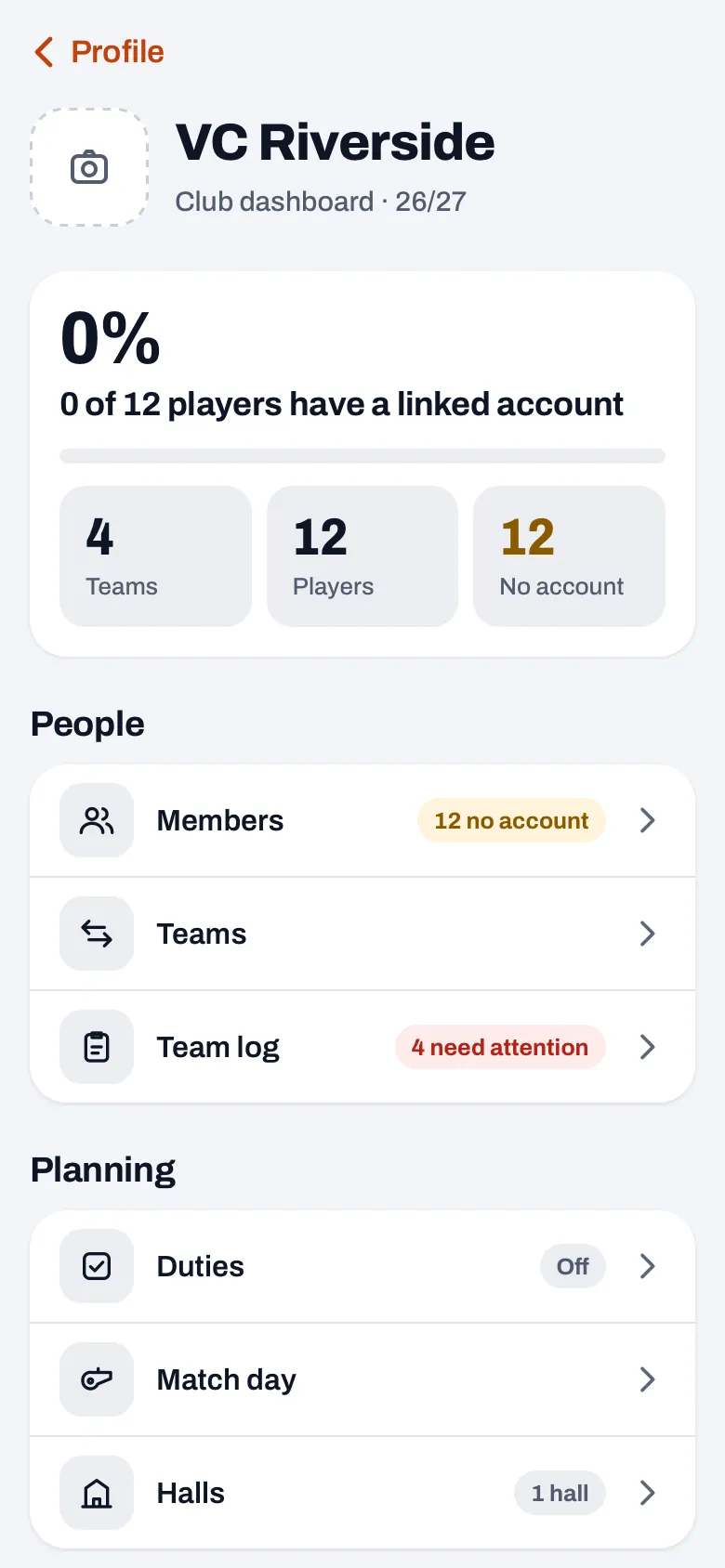
“A club asked for a demo of the club module in September. After that conversation I wrote a step-by-step guide for their board, and to do that I went through everything. That’s when I saw something I would rather have seen earlier: a board member without a team of their own could no longer get into the Club dashboard after their fourteen-day trial. They hit the paywall, even when their club simply had a subscription.
“That was fixed the same evening. If someone has a role in a paying club, the paywall and the screen without a team now show a button to the Club dashboard. A board member doesn’t need a subscription of their own. Only someone who has a team of their own outside the club pays for that separately.”
And the inviting itself?
“That was the second thing. Under Members the board could see perfectly well who didn’t have an account yet, but couldn’t do anything about it. That list was read-only. Only the owner or a coach of that team could create a link. So a board member had to ask a coach, team by team.
“In mid-October that same club asked for exactly that: inviting from the club dashboard. With two extras: being able to invite all the parents of a team in one go, and what to do with a parent who has used their child’s link.”
Why could only a coach invite at first?
“Because an invitation is more than a name on a list. Whoever accepts a link like that gets an account attached to a player’s card, and that player is often a child. With a player link, that account becomes the player. With a parent link you can sign that child in and out and see the team’s details. That’s not something you hand to just anyone.
“That’s why it can now be done from the club, but only by the club manager and the board: the people who also decide who goes in which team. Not the treasurer, they deal with money. Not the confidential adviser. And not the technical manager either: they read along, but don’t change anything.”
What do the No account and No parent filters show?
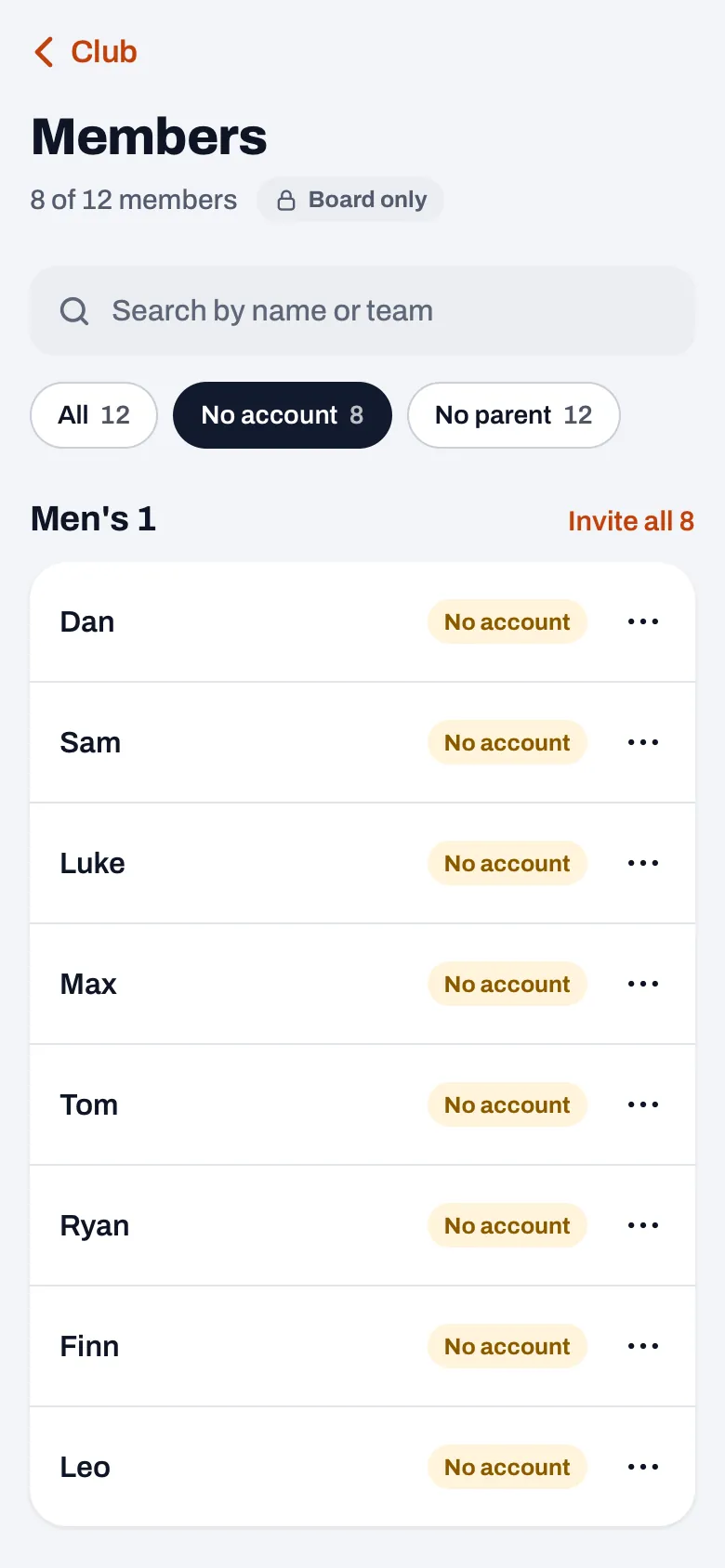
“Under Members you see every player in the club, by team. With No account you see which players don’t have their own account yet. With No parent you see which players don’t have a parent linked yet. That’s not the same thing, which is why there are two.
“For a senior team you want to know who doesn’t have an account yet. For a team of eleven-year-olds that matters much less: there you want to know which parents aren’t in yet. The same team can be completely full on one filter and almost empty on the other.”
How did that work in October, and what did version 3.1 add?
“In October the board could invite member by member. You tap a name, choose Invite, and then a player link for the player themselves or a parent link for a parent or guardian. A coach got a sheet in their own team screen to invite all their players or all their parents in one go. The board couldn’t get to that, because a board member often isn’t in any team. So they still had to go name by name.
“For one new member that’s fine. At the start of a season, with a few teams full of new names, it’s an evening of tapping. That’s why since 3.1 those two filters put a link in the heading of each team to invite all of them, with the number next to it. One tap per team, and you get the same message with links that a coach gets in their team screen, with the team’s name in it.”
Why do you have to choose between players and parents before inviting a whole team?
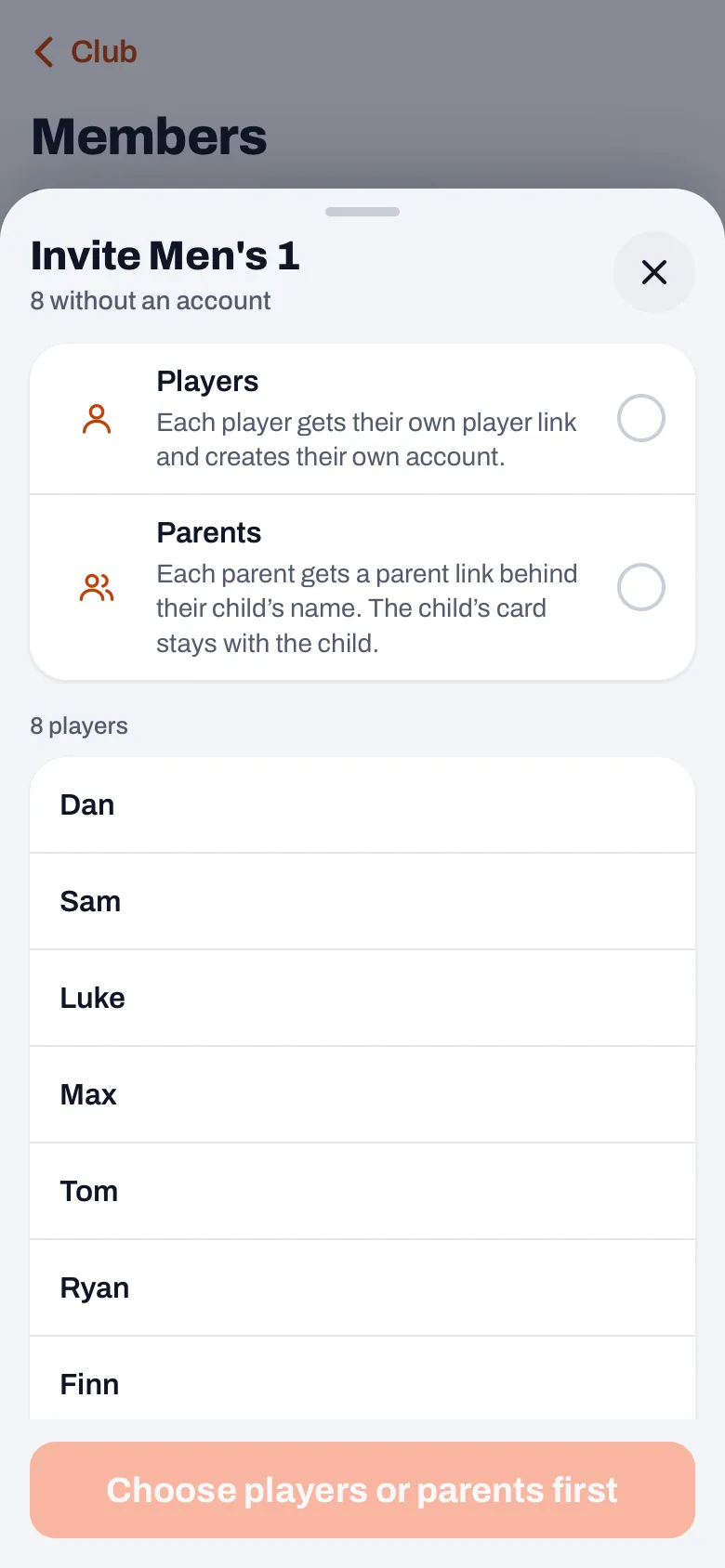
“Because the app can’t guess that for you. For a team of nine-year-olds you want the parents, for a women’s team the players themselves, and with fifteen-year-olds it depends on the family. So the sheet asks first: ‘Who are the links for?’ Players or parents. Nothing is ticked, on purpose, and until you choose, the button underneath says ‘Choose players or parents first’.
“Each choice says what happens. Players: each player gets their own player link and creates their own account. Parents: each parent gets a parent link behind their child’s name, and the child’s card stays with the child. If you come in through the No parent filter, Parents is already set. Then there’s nothing to choose.”
What goes wrong when a parent uses their child’s link?
“Then, as far as the app is concerned, that parent becomes the player. A player link says: this account is this player. If a father accepts it, his account hangs on his daughter’s card. And if she wants to log in herself later, her card is already tied to his account. A club ran into that for real. With one name you can repair it, with a whole team in one go you don’t want that.
“That’s why Players carries a warning: only for players who log in themselves, a parent who uses a player link takes over the child’s card. And a second line: a player link shared earlier for these names will stop working. So there’s no old link floating around a group chat next to the new one.”
Who is left out of a message like that, and why does it say so?
“If you choose parents, players who already have a parent aren’t included. Training-only players and inactive players aren’t included either way. It says so underneath, with names: ‘Already has a parent, not included’ and ‘Training-only or inactive, not included’.
“It isn’t a ban. If you do want to give a training-only player a link, just do it from their name. It’s a choice about who still needs a link right now. But if five names are missing from the message, a board member wants to know why. Otherwise they’ll think the app forgot them.”
And if some of the links fail?
“Then you simply get the links that did work, and underneath the names that aren’t in the message, with the reason. ‘Has an account by now’: someone may have just logged in while you had the list open. ‘No longer in this team’: a coach has just moved them. Or ‘Could not create the link’, if that one link went wrong.
“Below that is ‘Try again for’ with the number, and that only requests the rest again. Whatever worked stays put. At most sixty go at a time. If a team is ever bigger, the rest are listed as not done yet, and you fetch them with the same button.”
What does Koach deliberately not do here?
“Send anything itself. Koach creates the links and puts them in one message with the team’s name in it. You share that message yourself, in the team’s group chat or through the coach. No email or text message goes out from Koach. A message like that lands best where the team is already talking to each other.
“And the app doesn’t guess. There’s no tick already on Players, and no parent quietly gets a player link because that happened to be the default. With one name a wrong choice is a small fix. With a whole team you fix the same mistake twenty times.”
Get the whole club in
Inviting from Members, per member or per team, is part of the club module in Koach and comes with the Club plan. As a coach you first try Koach free for fourteen days with your own team.
Try Koach free