Logging in without a password: code, Google or Apple
Passwords get lost, get reused, or end up on a note at the bottom of a kit bag. That's why Koach does without them: you enter your email address and within seconds receive a six-digit code that gets you in. This article explains how that works — and what to do if the email doesn't show up for once.
How to log in
- Open Koach and choose "Already have an account? Log in".
- Enter your email address — the same address you saved your team with.
- Check your email: you'll instantly receive a message from Koach with a large six-digit code. The code is in the subject line too, so often you don't even need to open the email.
- Enter the code and you're in your team. That's all — no password, nothing to remember.
Or in one tap: Google and Apple
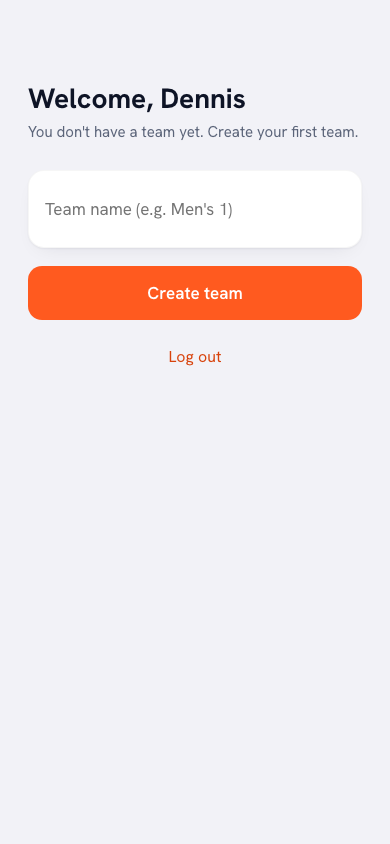
Below the email field sit two buttons: Continue with Google and Continue with Apple. Choose one and you skip the code entirely. You confirm with Google or Apple that you are giving Koach your name and email address, and you are in. No mail, no waiting, no typing a code while holding a ball in your other hand.
Koach receives only your name and email address. Not your contacts, not your calendar, not your photos. That is all the app needs to recognise your account.
All three routes lead to the same account, as long as the email address is the same. Someone who signed up with the code and later signs in with Google simply ends up in their own team. And the other way round.
Does this email address already belong to another account? Koach will say so and ask you to sign in with the emailed code instead. That happens if, for instance, you once signed up with an address spelled slightly differently. The code is your way back into your existing team.
Why no password?
Three reasons. It's faster: especially on your phone courtside, the last thing you want is to type a password. It's safer: there's no password to be stolen, guessed or reused — the code is single-use and expires after an hour. And it saves hassle: nobody ever has to click "forgot password" again. A new account, by the way, also takes nothing more than your email address: your team is up in ten minutes, with no confirmation email.
The email isn't arriving — now what?
- Check your spam folder. The email comes from the koachvolleybal.nl domain; mark it as "not spam" if needed, so future codes land straight in your inbox.
- Double-check the address. A typo is easily made — the code only goes to the address that exactly matches your account.
- Request a new code. After 45 seconds you can tap "Send again". The most recent code is always the valid one.
Good to know: the code is valid for one hour and works only once. Don't share it with anyone — Koach will never ask for it by phone or message.
It works exactly the same for players
Player accounts log in with a code too. If you'd still rather set a password (for a shared team tablet, say), you can do that in your profile settings — but it's not required.
Frequently asked questions
How long is the login code valid?
One hour, and the code works once. If you request a new code, the most recent one is the valid one.
I'm not receiving the email with the code. What can I do?
Check your spam folder and make sure you're using the email address on your account. After 45 seconds you can request a new code. If it keeps failing, email info [at] koachvolleybal.nl — we reply within 24 hours.
Can I sign in with a password after all?
No. Koach has no password for users — so there is nothing to forget or to leak. You get in with the emailed code, with Google or with Apple.
What is the difference between the login code and Continue with Google?
Only convenience. The code arrives by email and asks for six digits; with Google or Apple you confirm in one tap. Both routes lead to the same account, as long as the email address is the same.
What does Koach share with Google or Apple when I sign in this way?
Koach receives your name and email address, nothing more. No contacts, no calendar, no photos.
I sign in with Google but land in an empty account.
Then the address on your Google account is not the address you were invited with. Sign in with the emailed code on the address where you received the invitation; that is where your team is.