
Notifications in Koach: push notifications and reminders on your device
“Who's driving on Saturday?” is a perfectly good poll — except when nobody sees it. That's why Koach sends a push notification for new announcements, polls and tasks, and the app reminds you in time of practice, match and duty. Below is exactly what happens.
What actually reaches your device today
If you have the Koach app installed and you've allowed notifications, you get a timely nudge for what's coming.
- Practice and match: the evening before, one push message with everything you have tomorrow, across your other teams too. Only for practices that haven't been cancelled and matches that are still scheduled.
- A task or duty you are rostered on for: a day beforehand. Somebody else's task is skipped.
Good to know: this only works in the installed app, not in the browser. If no push notifications reach your device, the app reminds you itself two hours before a practice or match. If a practice is cancelled or moved, the reminder moves with it.
Team messages live in the app
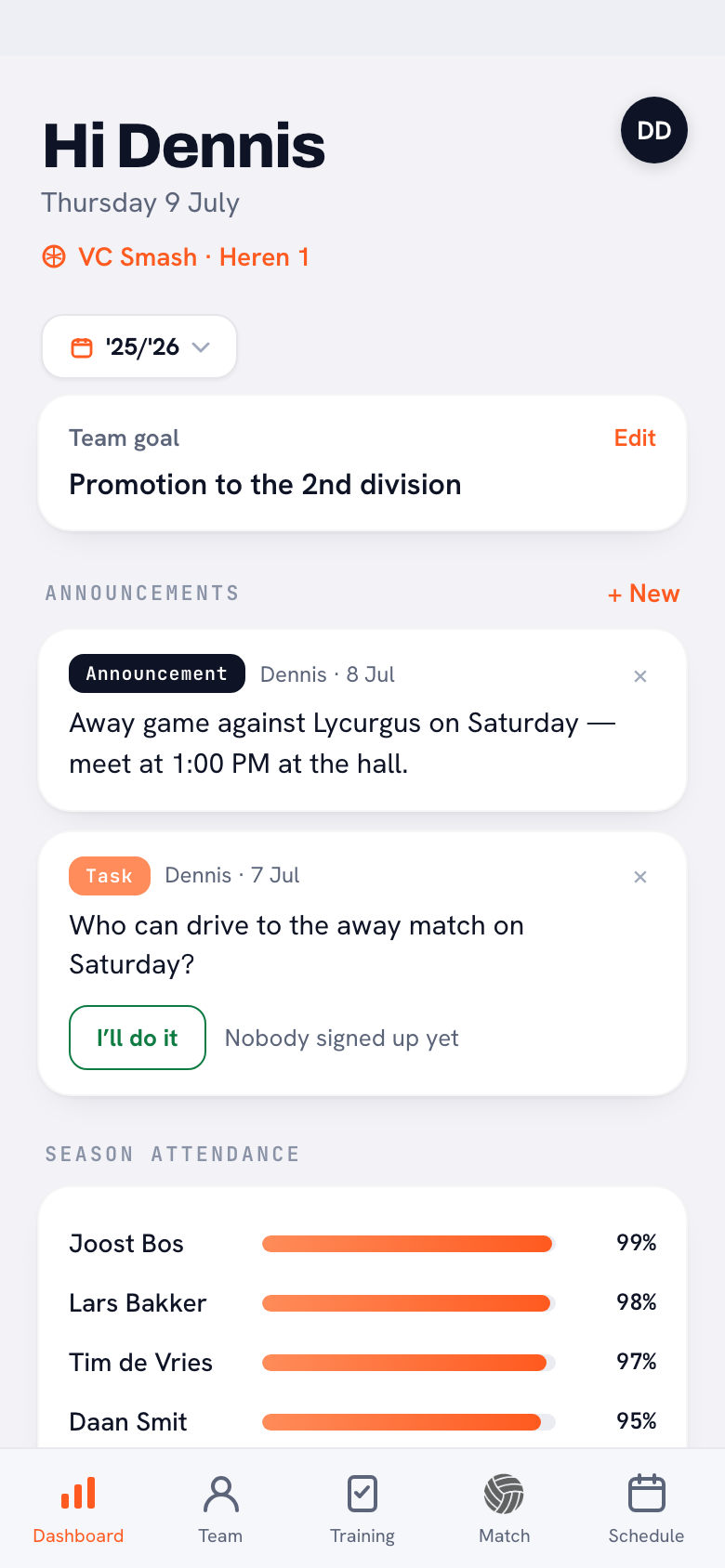
Whatever you post on the dashboard as a coach — an announcement, a poll, a task, homework or the call to vote for Player of the Match — arrives in the team feed. Players and parents see it the moment they open the app; homework also shows on the player's profile, and club announcements get a list of their own. Anyone who has the iPhone or Android app and has team messages switched on also gets a push notification for it; in the browser they don't.
Everyone decides what they receive
Everyone manages their own notifications: tap your profile photo and switch the categories on or off under Notifications — schedule changes, team messages, messages meant for you alone and the reminder each have their own toggle. Coach a team and attendance for your teams is added; belong to a club and club announcements appear as well. The reminder is deliberately a single switch: turn it off and your own device goes quiet too.
If your phone is blocking everything from Koach — because you tapped 'don't allow' the first time you opened it, say — you'll see that as a card above the toggles, with a button through to your device settings. That is the only place you can switch them back on.
Push notifications: when you get one
In the iPhone and Android app, push notifications arrive for new announcements, polls and tasks, assigned homework, the call to vote after a match, schedule changes and club announcements. Not in the browser: there you only see it when you open Koach. The rule that applies: whoever posts the message doesn't get their own notification back — the rest of the team does, as far as they have the category switched on.
Tip: use tasks for everything that needs organising (driving, washing kit, hall duty). Anyone with the app gets a push notification for it; if someone only uses Koach in the browser, add one line in your group chat saying there's something waiting. Players can then sign up with one tap and you see straight away who's picking it up.
Frequently asked questions
Does Koach send a push notification for a new team message?
Yes, in the iPhone and Android app: for a new announcement, poll or task the rest of the team gets a push notification, as far as they have team messages switched on. No push notifications arrive in the browser.
Which reminders do I get on my phone?
The evening before a practice or scheduled match, one message with everything for tomorrow, and a day before a task or duty you're rostered on for. If no push notifications reach your device, the app reminds you two hours before a practice or match. That only works in the installed app and only if you've allowed notifications.
Can I switch notifications off by type?
Yes. Under your profile in Notifications, schedule changes, team messages, personal messages and the reminder each stand on their own; coaches also get attendance there and club members the club announcements.
I'm not getting anything at all — now what?
Check whether your device is blocking notifications from Koach: if it is, Koach shows a card above the toggles with a button through to your phone settings. That is the only place you can turn them back on.
Try it yourself in Koach
Less admin, more coaching.
Get started with KoachOr read first what the volleyball coaching app does.