
Koach settings: dark mode, notifications, language and your teams
The short answer
You change the Koach settings in your profile: tap your round avatar at the top right. Under App you choose between System, Light and Dark at Appearance, and you turn Notifications on or off by type. You switch the language in Edit profile, and you manage your teams under My teams.
Getting your Koach settings right takes a few minutes: dark mode for the evening, only the notifications you really want and the app in your own language. This article shows where each setting is and what exactly it does.
Where do you find the Koach settings?
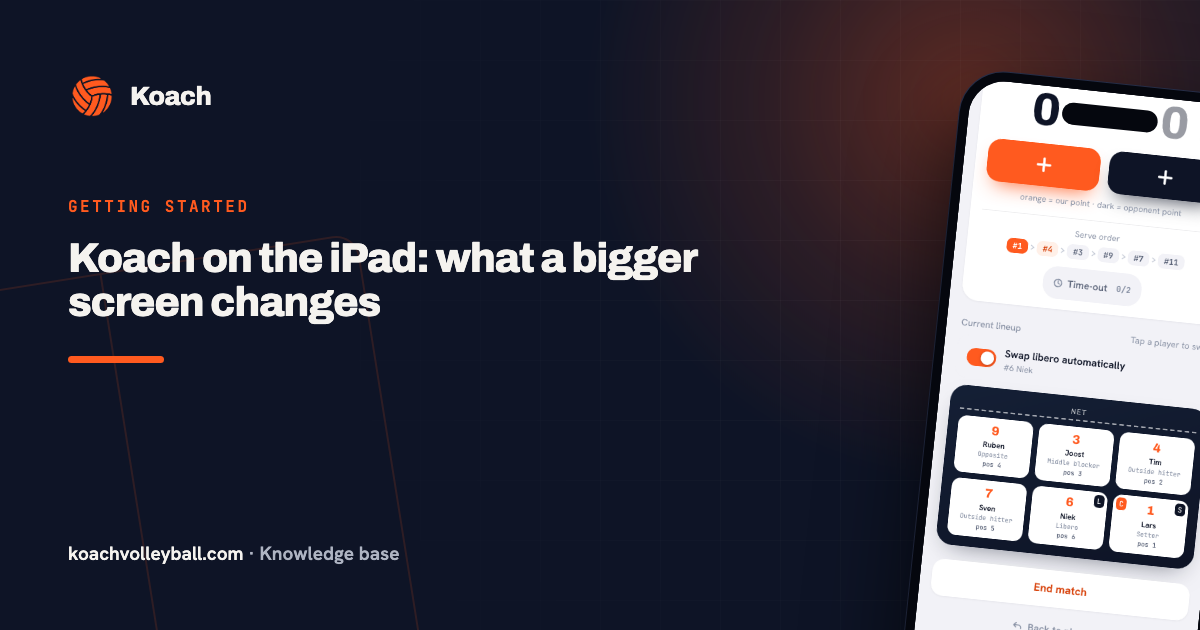
Everything is in your profile. On a phone you open it with the round avatar at the top right of the screen. On a wide screen, from 1000 pixels, such as an iPad in landscape or a computer, your avatar and first name sit at the bottom of the sidebar. How Koach behaves on a big screen is in Koach on the iPad.
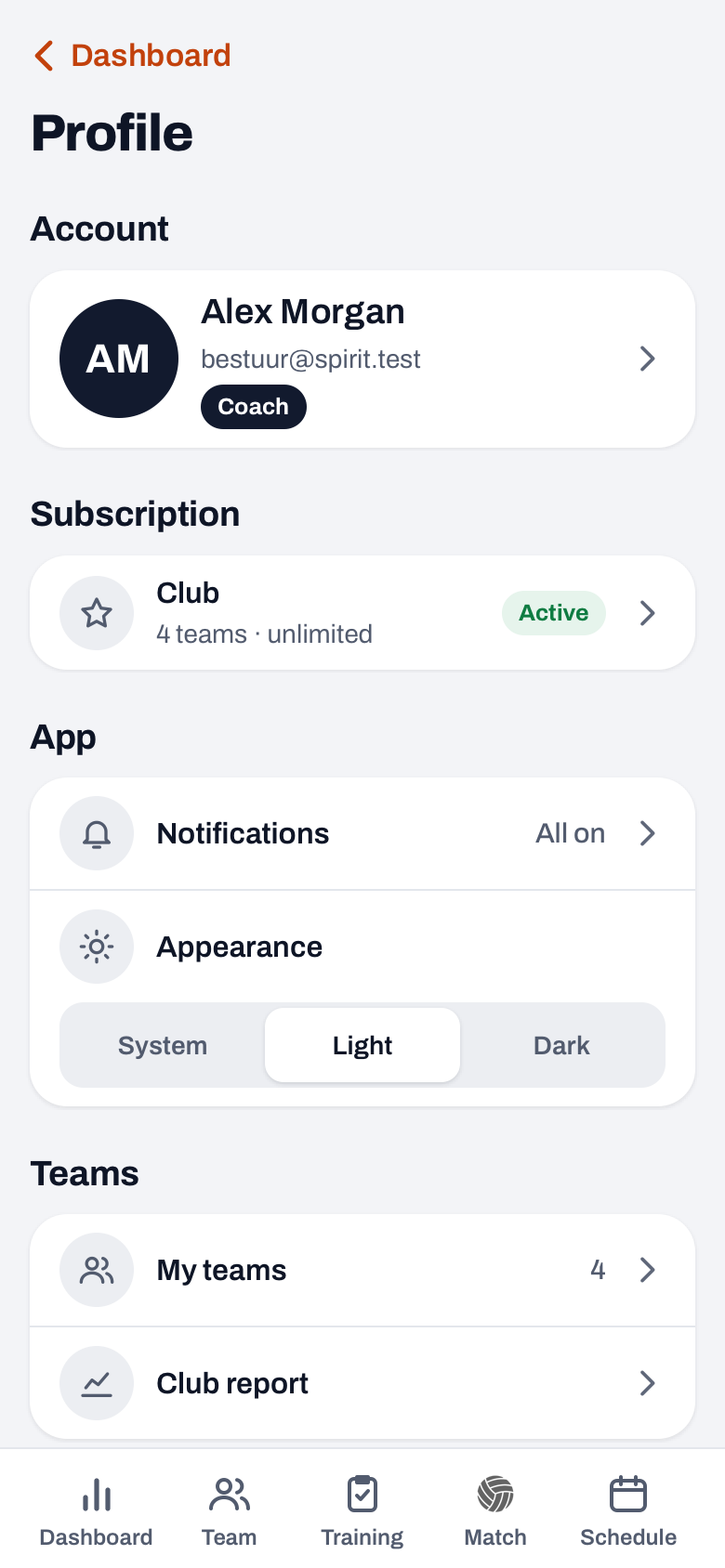
Since Koach 3.0 the profile is a short list in groups:
- Account: your name, email address and role. A tap opens Edit profile.
- Subscription: your plan and its status, for coaches.
- App: Notifications and Appearance, and in the app for iPhone and Android also Ad measurement.
- Teams: My teams, and for coaches with Club and two or more teams the Club report. Players and parents see their team cards right here instead.
- Club: Club announcements if you belong to a club, and the Club dashboard if you manage the club or have a club role.
- Support: Help and support, and for coaches Get started.
Most rows open a screen of their own; Profile at the top left takes you back to the list. You choose Appearance directly in the list itself, and Ad measurement is a switch. At the bottom are Log out and Delete account. Still wondering whether Koach suits your team? Read the checklist for a volleyball app for coaches first.
How to turn on dark mode
Since Koach 3.0 the app has a dark mode. Open your profile and look under App at Appearance. Right below that row are three buttons:
- System follows the light or dark setting of your phone, tablet or computer, and switches along when your device does. This is the default.
- Light keeps Koach light all the time.
- Dark keeps Koach dark all the time, which is pleasant in a dark sports hall or at home in the evening.
The choice applies immediately, including the login screen on that device. In the app for iPhone and Android the bar with the clock and the battery changes colour too. Note that Appearance applies per device, not per account. If you set it to Dark on your phone, Koach on your tablet or in the browser is still on System. The widget on your home screen always follows your device's setting; more on that in the widget on your home screen.
Choosing notifications: what do you want to receive?
Under App, Notifications you turn a switch on or off for each type:
- Schedule changes
- Team messages
- Personal
- Day-before reminder
- Attendance in your teams, only if you coach a team
- Club announcements, only if you belong to a club
In the profile you see a summary after Notifications, such as All on or 3 of 5 on. If notifications are turned off on your device itself, it says Off, and a card with the Open settings button appears at the top of the screen. Push notifications only work in the app, not in the browser. When you get which notification is explained in notifications in Koach.
14 days free, no credit card. Add your team tonight and set up the app the way you want it straight away.
Try Koach with your teamChanging the language of Koach
In your profile, tap the row with your name to open Edit profile, and choose Language there. Koach has six languages: English, Dutch, German, Spanish, Italian and Polish. When you tap a language, the whole app switches straight away and the choice is saved to your account; you do not need to press Save. On this device the login screen then opens in that language too. More on working in another language is in using Koach in English and five other languages.
Managing your teams
Under Teams, My teams you see all your teams with the number of players and coaches. The team you have open right now has the label Current. With the orange plus at the top right you create a new team; with Coach you have one team of your own, and for a second team of your own the app asks for Club. Tap a team to manage its coaches and parents, the team name and your home hall, and at the bottom, depending on your role, you can transfer, delete or leave the team.
You do not switch quickly between teams in the profile, but with the button under the title of every tab that shows your team and season. How to keep that manageable with several teams is in coaching multiple teams.
Simple or Expert as your default
For live scoring you choose between Simple and Expert on the match's start screen, under Scoring. Koach remembers your choice per team on this device, so the next match starts in the same mode by itself. In the middle of a match you switch through the More sheet of the live screen. By default Koach is set to Simple.
Ad measurement
In the app for iPhone and Android, Koach asks once whether it may measure which ad brought you to Koach. If you say yes, Koach shares a device ID, and whether you sign up or take out a subscription, with Adjust and ad partners such as Google and Meta, but never your name, email address or team details. On an iPhone, Apple's own question follows after that. You can turn it off later, or on after all, under Profile at App with the Ad measurement switch. In the browser this question does not exist. What else changed in Koach 3.0 is in Koach 3.0: what's new, and what Koach costs is on the pricing page.
Using Koach on two devices? Then set Appearance and Simple or Expert on each device separately. Koach remembers those two choices per device; your language and your notifications belong to your account.
Frequently asked questions
Why is Koach light again on my second device?
Appearance applies per device and per browser, not per account. If you set Koach to Dark on your phone, it stays on System on your tablet or in the browser, and there it follows that device's setting. So set Appearance on each device separately, under Profile at App.
How do I turn off Koach notifications?
Open your profile and choose the Notifications row under App. There you turn off a switch per type, for example Team messages or Day-before reminder. If you want no notifications at all, turn them off in your phone's settings; Koach then shows Off after Notifications.
Can I use Koach in English or another language?
Yes. Koach works in English, Dutch, German, Spanish, Italian and Polish. You choose the language in Edit profile at Language; the app switches straight away and the choice is saved to your account. On the login screen you pick the language with the language buttons at the bottom.
Does dark mode or any other setting cost extra?
No. Appearance, notifications and language come with every account, including the free account for players and parents. As a coach you can try Koach free for 14 days with one team, no credit card. After that you choose Coach (one team, two coaches) or Club (unlimited teams and coaches); the amounts are on the pricing page.
Set up Koach for your team
14 days free, no credit card. After one week you know which notifications you really want.
Get started with KoachOr read first what the volleyball coaching app does.