
Ready-made volleyball drills in the app: filtering by who turns up
You built a programme for twelve players. At a quarter to eight, seven are there: two are ill and three have an exam tomorrow. The block you expected most from is off the table, and while the first balls are already flying you are standing there doing sums. That sum is exactly what a drill collection can do for you — provided it knows how many players each drill needs.
What is in the collection
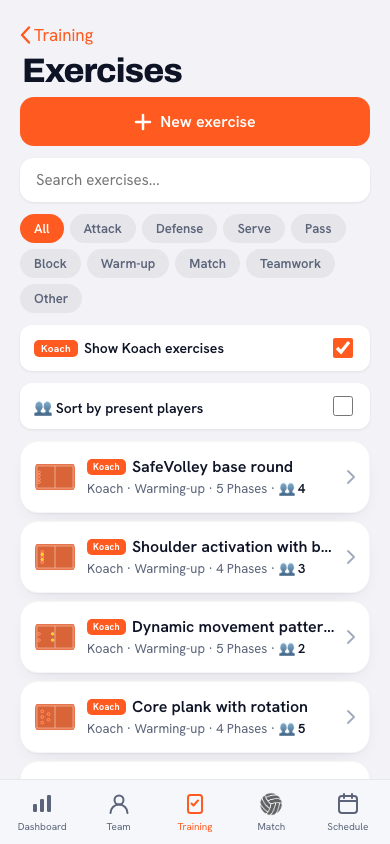
Koach comes with two hundred drills built in. You do not have to download, buy or import them: they are there from your first day, alongside the drills you create yourself. You recognise them in the list by the orange Koach mark under the name. If you only want to see your own work, choose Club under Source in Filter and sort.
The nine categories are the same ones your own drills use: attack, defence, serving, passing, blocking, warm-up, game play, teamwork and other. Almost half the drills carry more than one, because a pepper series is simply a warm-up and a defence drill at the same time; filtering on a category therefore gives you everything that label sits on.
More interesting than the categories is the spread across group sizes, because that is where it pinches for most coaches. A hundred and eight of the two hundred drills are built for groups of eight to twelve players — the turnout of an ordinary team session. Sixty-three work with three players or fewer, and twenty-nine sit in between, at four to seven. What there is not: drills for more than twelve players at once. The collection stops at twelve, and that is a deliberate limit we will come back to.
A drill that runs instead of standing still
Every drill in the collection is made up of phases: five to thirteen positions on court, each with a note about what happens. Press play and the players and the ball slide from one position to the next, and you see the drill run. You can also step through the phases one at a time with the Previous phase and Next phase buttons; the line next to them tells you which phase you are in.
That difference between a running animation and a still court diagram looks cosmetic and is not. A diagram with arrows has to be explained; someone who reads the diagram differently from you only finds that out once the drill has been going wrong for three minutes. An animation needs no explaining. You walk to the net with your phone, press play, and the players who did not get it can see in one go where to stand and where the ball goes. Then you put the phone away and the drill simply runs.
That same animation is in your practice plan too: a block that comes from the collection shows the little court instead of a sequence number, and tapping that block and then View drill opens the drill with the play button in it. So you do not have to go back to the library during practice.
Present players first
This is the feature the evening in the introduction is about. Next to the search field in the Drills segment is the Filter and sort button. Under Sort, choose Present players first. A Present row then appears with a minus and a plus button and a number in between, and the list puts what fits that number at the top.
The number does not start at zero. Koach immediately fills in how many players have signed up for the next practice; if nobody has replied yet, it uses the number of active players in your squad. From there you tap: two ill and three away, and you are at seven. The counter runs from one to thirty, so a combined session with two teams or a double session with four players can be entered as well.
You then get one list in a fixed order:
- First what fits: drills for your number of players or fewer, the biggest at the top. So the ones for exactly your number come first, and every drill that fits shows its number of players in a green badge.
- At the bottom what needs more players, from small to large: at the top of that part is what you could still run if one player came over from another team.
Behind each drill in the list is the number of players it asks for, and above the list you see how many drills there are, with a green badge for the number of present players it sorts on. That is the whole decision in one glance.
What does not fit is not hidden. Drills that need more players sit at the bottom of the list and stay tappable. Useful when you are planning for a week when everybody will be there, or to see what you would reach with two extra players.
What the order tells you
The sorting does not stand apart from the rest. Search term, category chip and your choice under Source all keep working; the order is built from whatever is left after that filtering. Pick the Block category with eight players entered and you see only blocking drills, with what fits eight at the top.
Two outcomes deserve a warning in advance. Enter a small number, four, five or six, and most of the list suddenly sits at the bottom with the drills that need more players, because a hundred and eight of the two hundred drills were built for eight to twelve players. That is not a fault but an honest answer: with five players a good part of the collection simply does not run. What you need then is in practising with a small group.
And enter a big number, twenty or twenty-four, and everything fits but no drill matches your number exactly. That is down to the limit at twelve. There is no drill in the collection that keeps twenty players busy at once, because such a drill does not really exist: with twenty players you run two groups side by side, or a form with rotation through it. How to organise that without a queue is in twenty players, one court. The sorting does help you there: it puts what comes closest to your number at the top, so you pick two drills for ten instead of hunting for one for twenty that does not exist.
One thing to know about that starting number: it comes from the sign-ups for the next practice, as they stand at that moment in the attendance list. If you plan days ahead, that list is often not complete yet, and anyone who stays away without signing out still counts. In the hall you tap the number right in two seconds.
From the list into your practice block
Picking a drill is one thing, getting it into your evening is the next. Open the practice for that date and under the plan is the + Add drill button. It opens a sheet with the same list as the library, your own drills plus the two hundred that come with the app, with a search field and the same category chips. With the plus behind a drill you pick one or more, and the button at the bottom puts them at the end of your plan, with the name and the description already filled in.
You fill in the duration yourself, because only you know it: the same block is eight minutes for a seasoned side and twenty for a youth team still learning the shape. You do that by tapping the block; until then it says No time. With the handle on the left you drag the order until the build-up is right — how you choose that build-up is in practice blocks: building your session like a programme.
Note that the picker in the practice plan only filters on name, category and creator. The sort by present players lives in the Drills segment of the Training tab. So the practical order is: look there first with the right number entered, open the drill that stands out and tap Add to training at the bottom. The next practice is already selected, and the drill goes at the end of its plan.
Collecting takes a season, choosing takes a minute
Anyone building their own drill library gets the advice there to stop at thirty to fifty good drills. Collecting hundreds yourself is hoarding, not preparation: every drill you record costs you writing time, and you will never run a large part of what you save up over a season. That advice still stands.
There is no contradiction in it, though. Putting two hundred drills together and drawing them yourself takes a season; choosing from two hundred that are already there takes a minute. What is expensive about a big collection is making and maintaining it, not its existence. The collection is there to draw from, not to complete. Your own library stays what it was: the thirty to fifty forms that belong to your side, with your scoring and your pitfalls in them.
The two really do run into each other. You cannot edit a drill that comes with the app — that would change the collection for everyone — but under the description of every drill is Make a variation. That drops a copy into your own library which you are free to rework: a player extra, a phase out, different scoring. From that moment it is your drill, and it behaves like any other you have made with the drill editor. In practice that is the quickest way to start a library of your own: not from an empty court, but from something that already runs.
The same drills are on the site as well
All two hundred drills are on the website as well as in the app, each with the same animation, plus coaching points and variations in plain sentences. They are free to look at: no account, no login, nothing to install. There is an overview page per category, and the collection is there in six languages — Dutch, English, German, Spanish, Italian and Polish.
That is more useful than it sounds. Your fellow coach who has not got the app yet, your assistant standing in on Saturday, the parent asking what their daughter could practise at home: you send them a link and it just opens. You do not have to talk anyone into installing something first to show them what you mean. And if someone at your club does not speak your language, you send them the same drill in theirs — the name, the phase notes and the coaching points are translated per language, the court and the animation are identical.
It works the same way in the app: if a coach picks another language, the two hundred drills come along translated. The categories stay the same underneath, so a filter set by a Dutch coach gives their Polish colleague precisely the same drills. It is one collection, readable in six languages — and on the evening when seven people turn up instead of twelve, cut back in three taps to the handful that work tonight.
Frequently asked questions
Can I edit a Koach drill myself?
Not directly: the drills that come with the app are fixed, so they stay the same for everyone. Under the description there is a Make a variation button, though. It opens the editor with a copy in it, with your first name after the name, and only once you save there does it appear in your own library. The original stays untouched.
Can I delete such a variation later?
Yes. From the moment you save it, a variation is an ordinary drill of your own, so you can edit it and delete it with the bin at the top of the drill. The Koach drill it came from is not affected; that simply stays in the list.
Do my fellow coaches see the drills I create myself?
Coaches within the same club see each other's drills, including those from teams they are not in themselves. Under Filter and sort, Source then has a button per coach so you can filter by creator. Only the coach who made the drill can edit it.
Does the app remember the number of present players for next time?
No, the sorting and the number start fresh every session. Choose Present players first and Koach fills in the sign-ups for the next practice itself, or the number of active players if nobody has replied yet, and from there you tap. If the two hundred drills suddenly are not showing, check under Filter and sort whether Club is selected under Source.

Try it yourself in Koach
Less admin, more coaching.
Get started with KoachOr read first what the volleyball coaching app does.