
Back to previous screen: how Koach remembers where you were
The short answer
Going back to the previous screen works in most apps with the button at the top left, on an iPhone often also with a swipe from the left edge, and on Android with your phone's back button or back gesture. Since version 3.1, Koach takes you back to the same spot in the list, and every tab remembers which screen you had open.
Going back to the previous screen and then starting at the top of a long list again costs a few seconds of searching every time. Here is how going back works on iPhone, Android and in the browser, and how Koach, since version 3.1, remembers where you were, per tab and down to the spot in the list.
How do you go back to the previous screen on your phone?
Every device has its own way, and most apps follow it:
- iPhone and iPad: the back button at the top left of the app, and in many apps also a swipe from the left edge of the screen to the right.
- Android: your phone's back button, or with gesture navigation a swipe from the left or right edge towards the middle. That gesture belongs to the phone itself.
- A browser: the browser's back button takes you to the previous web page. In an app that runs in the browser, that isn't always the app's previous screen. With Koach in the browser, the browser's back button, and on Android your phone's back button too, takes you out of Koach to the previous web page. Use the back button at the top left in Koach there.
- Sheets: a window that slides up from the bottom and has a short bar at the top, the handle, can be swiped down to close it in many apps.
Where apps differ is what happens after Back. Are you back where you were, or do you start at the top of the list? With a season full of matches or a squad of fifteen players, that makes a difference every time.
The back button takes you back to where you were
Since November 2026, from version 3.1, Koach remembers where you came from:
- The button names the place you came from. If you open your practice with Open session on the dashboard, it says Dashboard at the top left, and a tap on it takes you back to the dashboard instead of to the list of practices. If you came from the schedule, it says Schedule.
- You are back at the same spot in the list. If you open a match halfway down a long list, Back puts you at that same height again. That applies to the schedule, the dashboard, the practices, All trainings, the matches, a tournament and the team.
- Also between players, matches and practices. If you open a match from a player, or a player from a practice, Back takes you to where you came from. On the player card, the section you had chosen, such as Stats, stays selected.
- From your profile. If you tap your avatar and then the back button, you are back on the screen where you were, and now also at the same spot in the list.
A tab remembers your screen
At the bottom are the tabs Dashboard, Team, Training, Match and Schedule; on a wide screen, such as an iPad in landscape, they sit in the sidebar. A parent has fewer tabs, but it works the same way there:
- One tap on another tab takes you back to the screen you had open there, at the same spot. If you were looking at a player in Team and you check the schedule for a moment, a tap on Team brings you back to that player.
- A second tap on the tab you are already on takes you to the start: the open screen closes and you are at the top. That also works from All trainings and from the screen with All season insights.
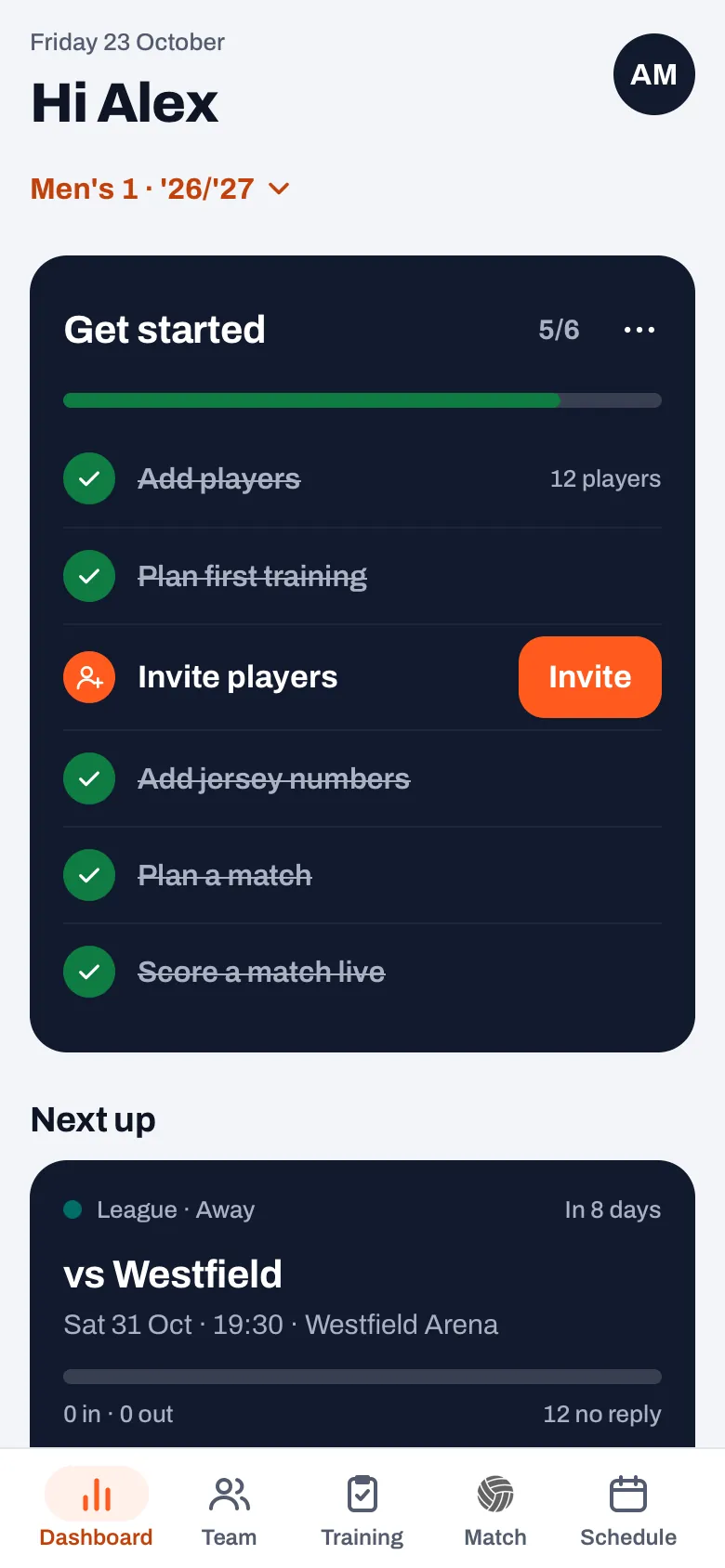
Not everything is remembered: a tab doesn't keep Prepare match, comparing matches or players, or the live screen. While a match is live, the Match tab doesn't remember any other screen: the live match comes first, or the Back to live card if you had put it away. Remembered screens are cleared when you switch team or season, when you log out or someone else logs in on the device, and when the match, practice or player has been deleted in the meantime. Then you simply see the list.
14 days free, no credit card. Put your team in Koach and see for yourself how quickly you move between player, match and practice.
Try Koach with your teamSwiping: a sheet down, and back from the edge
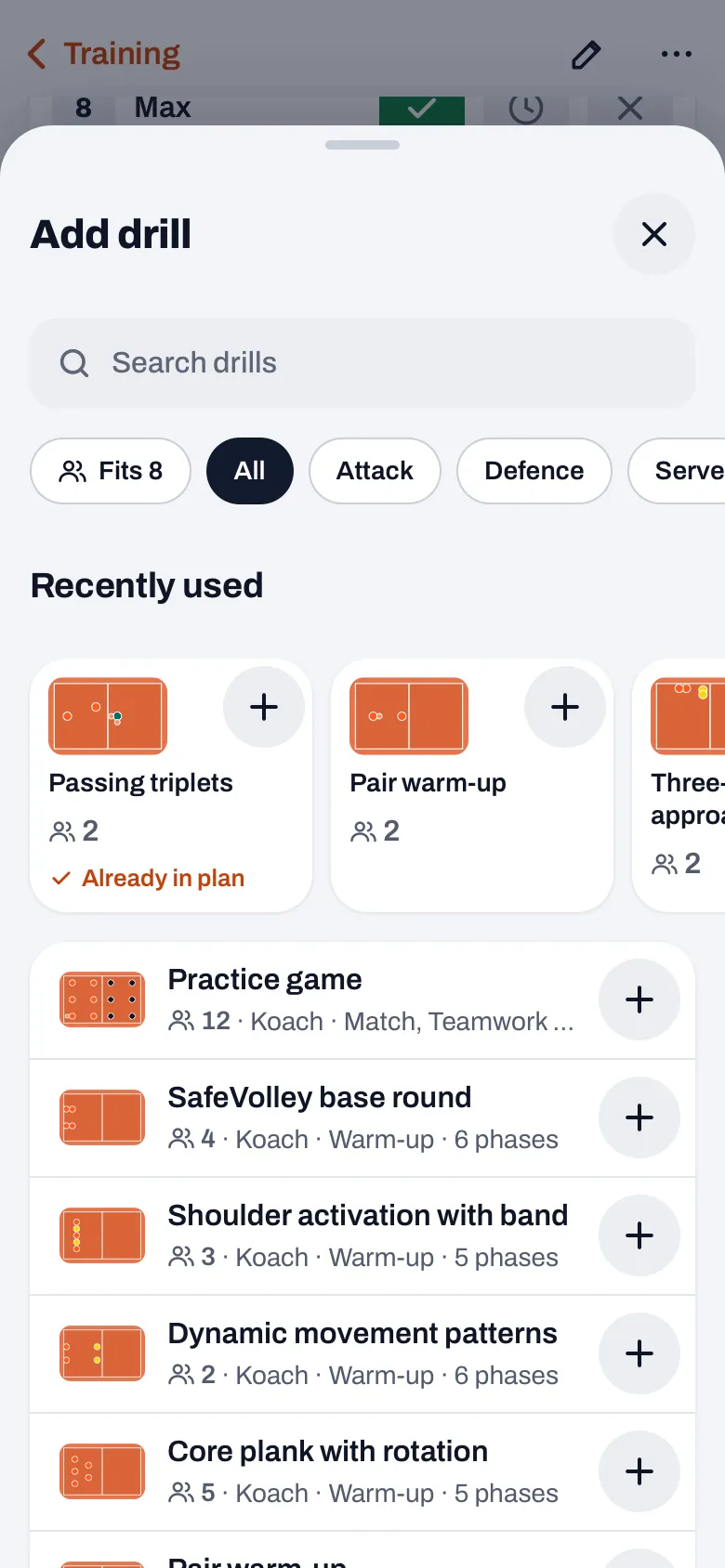
- Swiping a sheet down. Many sheets in Koach, such as Add drill or a new announcement, have a handle at the top. Swipe down on that handle or on the sheet's header, or anywhere in the sheet if you are scrolled right to the top. The sheet follows your finger. Let go after a good distance, or swipe quickly, and it closes; otherwise it springs back. This works on any touchscreen, also in the browser on a phone or tablet.
- Swiping back from the left edge. Start right at the left of the screen and swipe to the right: an open sheet closes, and otherwise you go back one screen, just like with the back button. This only works in the app from the App Store, so on the iPhone and on the iPad, where it is the same app. In Safari that swipe belongs to the browser and not to Koach.
- In the Android app you use your phone's back button or back gesture; in Koach it does exactly the same. If you are on the dashboard and go back once more, Koach goes to the background instead of closing.
If you are on a tab's list with nothing open, going back with the edge or the Android button takes you to the dashboard. If you were typing something in a sheet such as an announcement or an event and you swipe it closed, it isn't gone straight away: you get the Not saved message with a Restore button. How that works is in closed by accident. If you have set your phone to reduce motion, the sheet doesn't follow your finger and doesn't spring back; swiping it closed still works.
Where swiping deliberately doesn't work
On some screens you drag your finger across the court or tap quickly in a row. A swipe there could close something by accident, so neither gesture works there:
- during live scoring: the live screen, the drawer that asks how the point was won and the set break;
- on the scoreboard of someone you let keep score;
- in the practice game;
- on the tactics board and in the drill editor, including its large court.
A swipe also doesn't start in a text field you are typing in, on the court of a drill you are viewing, or on the handle you use to drag a section in your practice plan. A question with buttons, such as a confirmation, has no handle: you can't swipe it away, you choose yourself.
Swiping back from the edge also doesn't work on screens with Cancel at the top left, where typed or chosen work would disappear without a question: Prepare match, the practice report and the Duty settings in the club section. There you tap Cancel yourself, or save first.
More about how Koach is organized
Which screens sit behind the five tabs is in Koach 3.0: what's new, and what else came in November 2026 in Koach 3.1. Settings such as dark mode and your notifications are in setting up Koach. Still wondering whether Koach suits your team? Read the checklist for a volleyball app for coaches; what Koach costs after the 14 free days is on the pricing page. Don't see the new back button or swiping yet? Update the app through the App Store or Google Play.
Quickly to the top of a long list? Tap the tab you are already on once more. The open screen closes and you are at the top, even if you were deep inside a player or a match.
Frequently asked questions
Does swiping back also work on an Android phone?
In the Android app your phone handles going back itself: with gesture navigation you swipe from the edge of the screen, otherwise you use the back button. Koach responds to that the same way as to its own back button. In the browser on Android you leave the app that way; use the back button at the top left in Koach there. Koach's own edge gesture is only in the app on iPhone and iPad, because an iPhone, unlike Android, has no back gesture that works in every app.
Why does the back button sometimes say Dashboard and sometimes Match?
The button names the place you came from. If you open a match from the dashboard or the schedule, it is called Dashboard or Schedule and takes you back there. If you open the match in the Match tab itself, it is called Match and you return to the list, at the same spot.
Why does a tab sometimes start at the list again?
Koach deliberately forgets saved screens when you switch team or season, when you log out and when the screen no longer exists, for example a deleted match. Prepare match, comparing matches or players and the live screen aren't saved either. In those cases the tab opens on the list.
Can I swipe back in the browser too?
Swiping a sheet down works in the browser on any touchscreen. Swiping back from the edge only works in the app on iPhone and iPad. In the browser, use Koach's back button at the top left: the browser's own back button takes you to the previous web page, not to the previous screen in Koach.

Try Koach with your own team
14 days free, no credit card. See how quickly you're back where you were.
Get started with KoachOr read first what the volleyball coaching app does.