
Team availability tracker template for Excel and Google Sheets
The short answer
A team availability tracker template puts your players in the rows and your matches in the columns, with Yes, No or Watching in each cell and a count at the bottom. A blank cell means no reply yet. If you want players to answer for themselves and to see who stays silent, Koach does that for every match.
A team availability tracker template takes a few minutes to set up in Excel or Google Sheets: names down the side, matches across the top, and in each cell whether that player can make it. Below is the layout that works for a volleyball team, with the formulas that count how many players you have. After that, an honest look at where a spreadsheet runs out.
What goes into a team availability tracker?
An availability tracker answers one question for every match: how many players do you have, and in which positions? You don't need many columns for that, but you do need a few fixed rules. A good template has these:
- Players in the rows, sorted by position. Group your setters together, then your middles, your outside hitters, your opposites and your libero. That way you see at a glance whether you have a setter for the next match, not just whether you have six bodies.
- Matches in the columns. At the top of each column, the date, the opponent and home or away. A whole season fits on one sheet.
- Fixed answers. Only Yes, No or Watching, picked from a dropdown. Once someone can type "probably", your count stops working.
- Blank means no reply yet. This is the most important rule. A blank cell is not a no. It is exactly the group you need to chase.
- Room for a reason. A short reason next to a No, such as work, an injury or a vacation, tells you whether that player is back the week after.
- A count at the bottom. For every match, how many players can play and how many haven't replied yet.
Watching is a separate option because a player who comes to cheer the team on doesn't count as available to play. Why that difference matters is explained in coming to watch without playing.
Team availability tracker template: an example with five players
Here is a slice of the tracker: five players and three matches. Your own sheet holds your whole roster and your whole season; the structure stays the same.
| Player | Match 1 | Match 2 | Match 3 |
|---|---|---|---|
| Setter A | Yes | Yes | blank |
| Setter B | No | Yes | Yes |
| Middle A | Yes | Watching | blank |
| Outside hitter A | Yes | Yes | Yes |
| Libero | blank | Yes | Yes |
| Available | 3 | 4 | 3 |
| No reply yet | 1 | 0 | 2 |
Read the tracker by column, not by row. For match 1, three players can play and one hasn't replied, but your second setter is out: if setter A drops out, you have no setter at all. For match 3 there are two blank cells, and one of them is your first-choice setter. Those are the two you chase first: a blank cell can still go either way, a No can't.
How to build the tracker in Excel or Google Sheets
You don't need a download. With these steps the tracker is ready in a new, empty file, and the steps are nearly identical in both programs.
- Names and matches. Put your players in column A, starting in row 2, ordered by position. In row 1, starting in column B, enter the date of each match, the opponent and an H or A for home or away.
- A dropdown. Select the range for the answers and add data validation through the Data menu with three options: Yes, No and Watching. Now nobody can type anything else.
- The count. If your players are in rows 2 to 15, enter =COUNTIF(B2:B15,"Yes") under the first match for who can play and =COUNTBLANK(B2:B15) for who hasn't replied. If you get an error, your regional settings probably expect a semicolon instead of a comma. Then drag the formulas to the right so every match gets its own count.
- Color. Use conditional formatting to turn Yes green and No red. The blank cells then stand out on their own.
- The reason as a note. Don't type a reason into the cell itself; add it as a note on the cell. The cell keeps its Yes or No and your count stays right.
- Freeze. Freeze the first row and the first column (Freeze Panes in Excel, View and then Freeze in Google Sheets), so names and matches stay put when you scroll right on your phone.
If you also want to record afterwards who actually turned up, use a second tab and don't overwrite the availability. A player who signed up and woke up sick on match day belongs in the right place in both. Why those are two different questions is covered in tracking match attendance.
Where a spreadsheet tracker runs out
For a team that sorts everything out in one group chat, a tracker like this is often enough. Still, after a few matches you run into the same problems:
- You do all the typing. If you keep the tracker yourself, you copy every reply from the group chat into it, every single week.
- Or everyone can change everything. Share the sheet with an edit link and every player can change anyone's cell, or accidentally re-sort the whole thing. Working out what happened means digging through the version history.
- A blank cell sends no reminder. The sheet knows someone hasn't answered, but it tells nobody. Chasing them stays your job.
- Parents aren't in it. On a youth team the parent decides. They need the link too, and they need to know which row is their child's.
- It is wide on a phone. A whole season side by side means a lot of scrolling on a small screen.
- It stands apart from everything else. Your lineup, your driving rota and your stats live somewhere else, so you copy the names over by hand.
How to handle availability with players who answer for themselves, and which apps exist for it, is covered in an app for match availability. Below is only what's left of your template once you take that step.
From template to app: where your columns end up
We make Koach, so read this part with that in mind. In Koach your tracker still exists, except that your players now fill it in themselves. Every part of the template has a place:
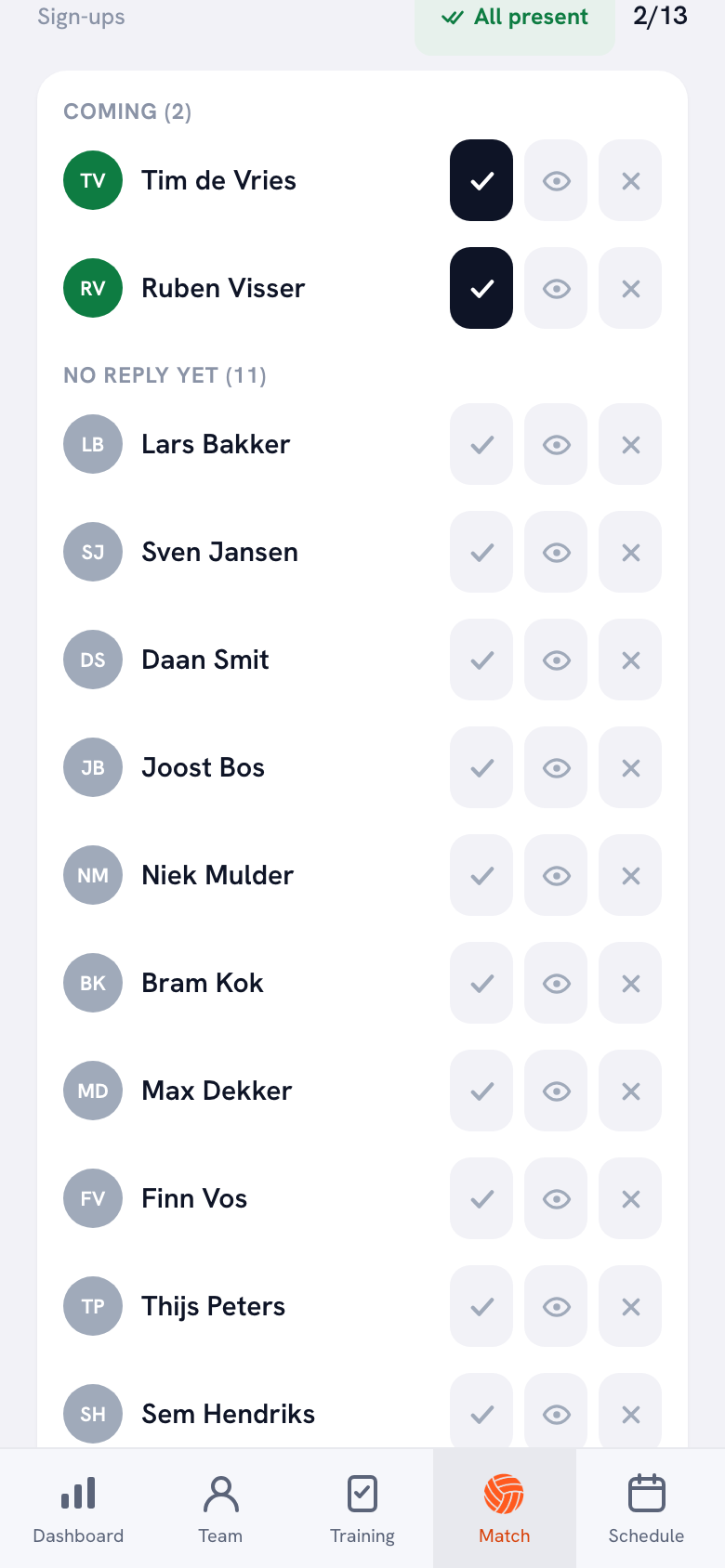
- The column per match is the match itself. Every scheduled match has a Sign-ups block, with the number of players coming against the size of your roster in the top right.
- Yes, No and Watching become the buttons I'm coming, Can't make it and I'm coming to watch, which players tap themselves. You see the answers in the groups Coming, Coming to watch and Can’t make it.
- The blank cell is the group No reply yet. You no longer have to count it. Everyone in it gets one nudge 48 hours before the match, and so does their linked parent; Koach skips a player you have marked Injured or Absent. That nudge only arrives in the iPhone and Android app, not in the browser.
- The note with the reason becomes the question Why can’t you make it? after a player says no. The reason shows up under their name in your list.
14 days free, no credit card. Add your next match and let your players fill in the list themselves this time.
Try it with your teamIf a player has no account, you enter their answer yourself with the three buttons next to their name, just as you did in your spreadsheet. And a player who filled a whole row with Yes in your sheet taps Sign up for all matches once in Koach: that signs them up for every scheduled match they hadn't answered yet. How signing up and dropping out works step by step for players, parents and coaches is explained in signing up for a match.
Sharing the list with whoever runs the carpool
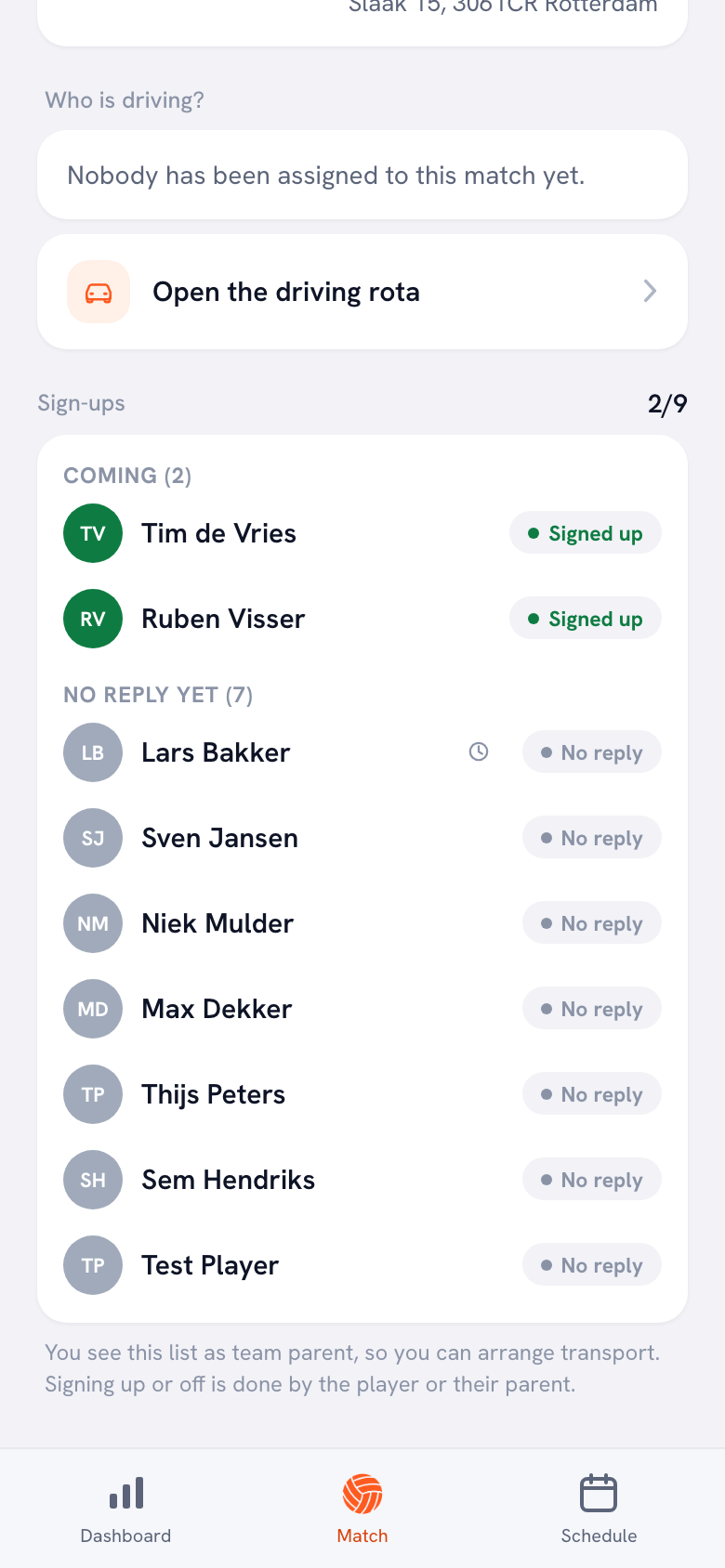
A spreadsheet gets shared with the parent who organizes the driving, and then you hope they don't change anything. In Koach you make that parent Team parent; how to do that is explained in appointing a team parent. They see the same sign-ups for every match, with each player's status and the reason when someone can't make it, and they reach the driving rota through Open the driving rota. The rota works from those same sign-ups: how many seats you need follows from who is coming. The team parent cannot sign anyone else up or out: that stays with the player, their own parent and you.
Who changed what
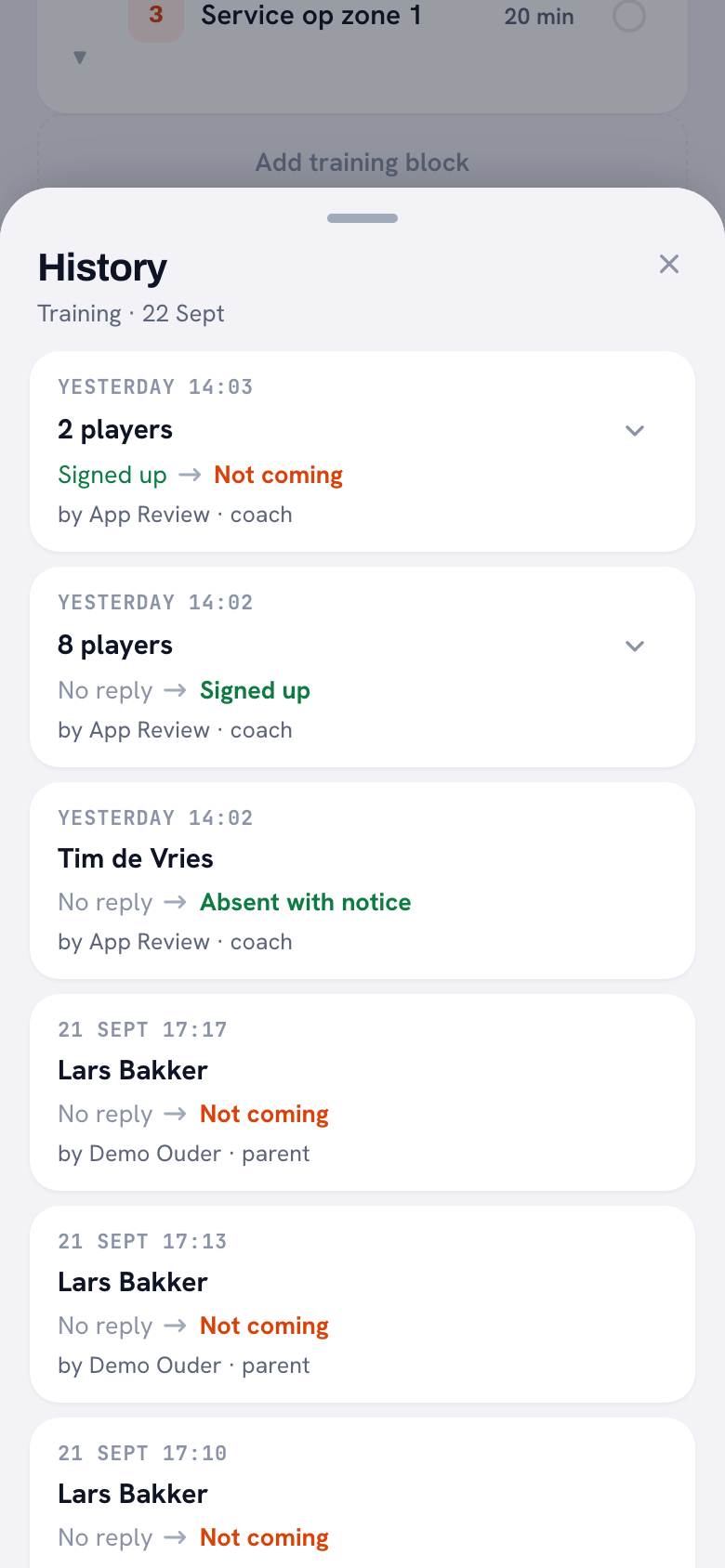
In a shared spreadsheet, a No that turned into a Yes can be a mystery. In Koach you tap the clock icon next to a name and see every change with the time, the old and the new status, and who made it: the player, a parent or a coach. The clock next to the Sign-ups heading shows the same for the whole match. It works for matches, practices and tournaments.
Spreadsheet or app: an honest comparison
| What you want | Paper | Spreadsheet | Koach |
|---|---|---|---|
| Cost | Free | Free in Google Sheets | €2.99 a month after 14 days |
| Works without an account | Yes | Yes, with a share link | You fill it in for them |
| Players answer themselves | If they're there | With the link | Yes |
| See who hasn't replied | Count blank cells | With a formula | Yes, own group |
| Reminder for non-responders | No | No | 48 hours ahead, in the app |
| Who changed what | No | Version history | Per sign-up |
| Driving rota works from it | No | No | Yes |
The spreadsheet wins on two points: in Google Sheets it costs nothing, and your players don't need to create an account. In Koach a player who wants to answer for themselves needs an account; that account is free. Koach wins as soon as you're done retyping and counting, and want the players who stay silent to get a nudge without you.
Who should stick with the spreadsheet, and who should use the app?
The template fits if you run a recreational team where almost everyone can always make it, if you like keeping the tracker yourself, or if your players don't want another app. And if you only want an overview for yourself, a spreadsheet is quick and free.
The app fits if you chase the same blank cells every week, if parents sign a youth player up or out, or if you want availability in the same app as your lineup and live scoring, with a driving rota that works from the sign-ups. Koach is built for volleyball only; if your team plays another sport, it isn't made for you.
What Koach doesn't do: import your spreadsheet. There is no import from Excel or a CSV file; you type your players' names once and then invite them. There is no chat either. What else you handle as a coach besides availability is covered in managing a volleyball team.
What does a team availability tracker cost?
The template costs nothing: you may already have Excel, and Google Sheets is free with a Google account. You can try Koach free for 14 days with one team, no credit card. After that you choose Coach for €2.99 per month (one team, two coaches) or Club for €9.99 per month (unlimited teams and coaches); on a yearly plan that comes to €2.49 or €8.33 per month. Players and parents use Koach for free. The prices are on the pricing page; in the App Store and on Google Play you see the price in your own currency.
Agree on one rule, whatever you use. Put a reply deadline at the top of the tracker, for example two days before the match, and say clearly that a blank cell is not a no. Then you know in time whether you need to bring someone in.
Frequently asked questions
Is there a free team availability tracker template?
This page has no download file, but it does have the complete layout: players in the rows, matches in the columns, a dropdown with Yes, No and Watching, and two formulas that do the counting. You build it yourself in Excel or in Google Sheets, which is free with a Google account. If you want players to answer for themselves and get a reminder, you can try Koach free for 14 days, no credit card. After that Coach costs €2.99 per month.
How do I see who hasn't responded in Excel?
Agree that a blank cell means no reply yet. Count those cells with COUNTBLANK, and use conditional formatting to color Yes and No so the blank cells stand out. You still have to contact whoever is behind a blank cell yourself: a spreadsheet doesn't send reminders.
Can players fill in an availability tracker in Google Sheets themselves?
Yes, if you share the sheet with a link that lets them edit. The downside is that everyone can then change every cell, including someone else's, and accidentally sort or clear a column. You find what changed in the version history. Once that stops working, an app where each player only gives their own answer is the next step.
What is the difference between availability and attendance?
Availability is what you ask beforehand: who can make the next match? Attendance is what you record afterwards: who was actually there? The two drift apart when someone signs up and gets sick on match day. So keep them separate, in a spreadsheet with two tabs. Koach keeps them separate too: the sign-ups sit with the match, and match attendance per player counts who actually played.
Can I import my Excel spreadsheet into Koach?
No. Koach has no import from Excel or a CSV file. When you create your team you only type your players' names; shirt numbers and positions come later. Then you invite each player with their own link, and from then on they give their availability themselves. You can keep your old spreadsheet as an archive.

Let your players fill in the list themselves
14 days free, no credit card. After one match you'll know whether you still miss the spreadsheet.
Get started with KoachOr read first what the volleyball coaching app does.