
Volleyball season schedule template: free PDF and Excel
The short answer
A volleyball season schedule template puts every match on one row: date, start time, home or away, opponent, venue, meet time, drivers and result. Download one free here as a PDF and an Excel file. If matches get moved a lot, reschedule them in the Koach team schedule and the team is notified automatically.
Looking for a volleyball season schedule template for your team? Below you'll find one to print and one to fill in on your laptop in Excel, both free and with no sign-up. After that: how to fill it in, where a printed schedule falls short, and when an app takes over the work.
Download the volleyball season schedule template: PDF and Excel
Two files for two ways of working. Both are free, need no account and don't ask for your email address.
- Volleyball season schedule (PDF): to print. Thirty empty match rows on two landscape A4 pages, with columns for the meet time and the drivers.
- Volleyball season schedule (Excel): to fill in on your laptop. Room for thirty matches, a meet time that works itself out, a summary sheet and a trip counter for each driver.
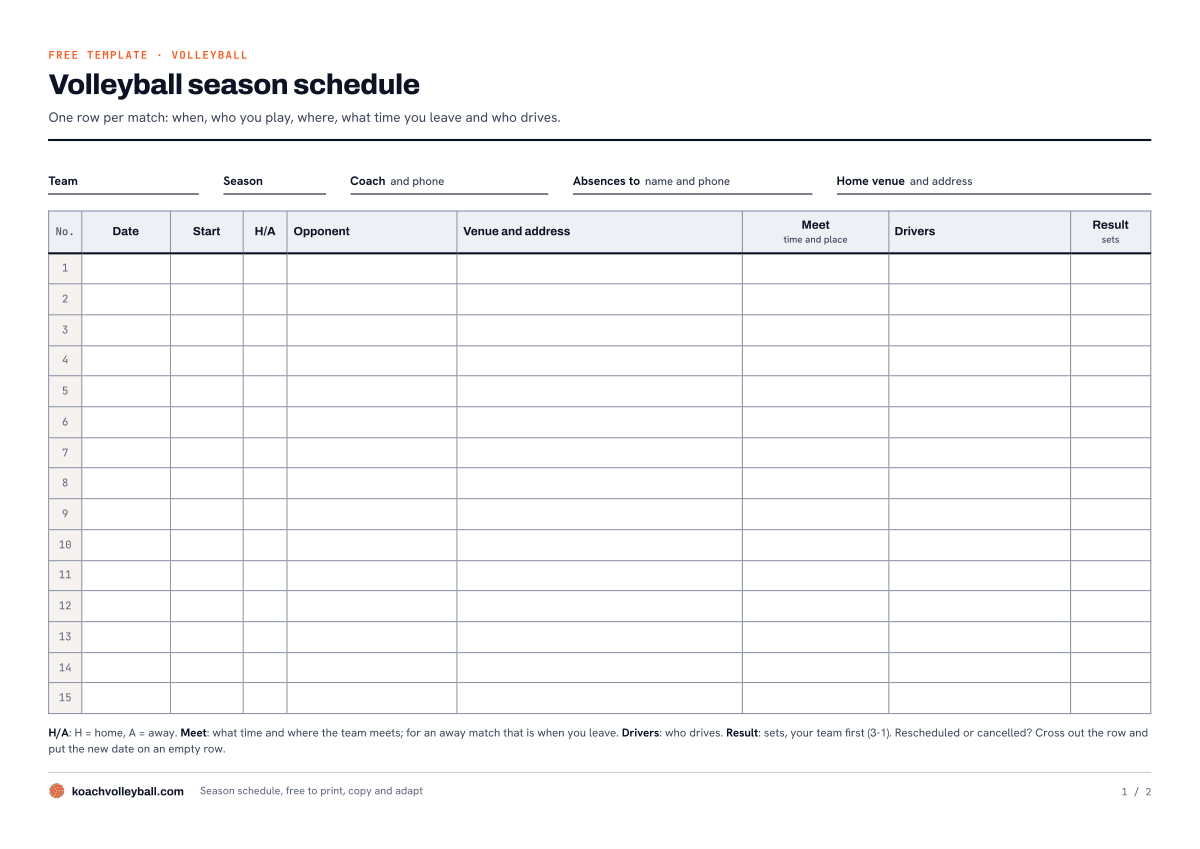
Above is the first page of the PDF; the second page has rows 16 through 30. The PDF is A4 landscape, so on US Letter paper choose Fit to page when you print. You're free to print, copy and adapt both files for your own team.
What's on the volleyball game schedule?
Whether you call it a game schedule or a match schedule, the layout is the same. At the top of the sheet you fill in the fixed details once: the team, the season, the coach with a phone number, who players tell when they can't make it (name and phone) and the home venue with its address. Below that, every match gets one row with these columns:
- No., Date and Start. The start time of the match itself, not the time the gym opens.
- H/A. H for home, A for away. That way you see at a glance which matches need drivers.
- Opponent, and Venue and address. Really write the address down, not just the name of the gym, or on match day a parent ends up at the wrong door.
- Meet. Time and place. For a home match it's the moment the team is in the gym; for an away match it's when you leave.
- Drivers. Who's driving, so you're not hunting for a car at the last minute.
- Result. In sets, your team first. So 3-1 means you won.
Below the table, a key repeats those conventions, so even a parent who sees the sheet for the first time knows what's meant. Rescheduled or cancelled? On paper you cross out the row and write the new date on an empty row.
The Excel file: what does it work out for you?
The Excel file has four sheets. How it works explains everything. On Matches you fill in, row by row, the date, the start time, Home or Away, the type of match (League, Cup, Friendly or Tournament), the opponent, the venue and the address; the day of the week appears by itself. At the top you enter once how many minutes before the start the team should be at the venue. Add the travel time for an away match and the Meet at column works out when you leave: start time minus travel time minus those minutes at the venue. If it's ever off, just type a different time over it.
An orange cell in the Drivers column is an away match nobody is driving to yet. After the match you enter the sets and the sheet adds the result: Won, Lost or Draw. If a match is rescheduled or cancelled, pick that under Status. For a rescheduled match you also change the date; a cancelled match is crossed out and no longer counts in the totals. The Summary sheet counts home and away matches, results and sets, and shows how many away matches still have no drivers. The Drivers sheet shows how often each parent or player is down to drive, so you can share the trips fairly. The counter searches by name, so write each name the same way every time and avoid a name that sits inside another one, like Dan and Daniel. You fill in the yellow cells; the grey cells calculate themselves.
How to fill in the template before the season starts
- Enter the whole schedule as soon as it's out. Copy it from the league website or from whatever your club sends round, and look up the venue address for every away match straight away.
- Agree on one meet rule for the whole season. For example: for home matches we're in the gym a set number of minutes before the start, and for away matches we always leave from the same spot.
- Share out the drives in one go. A parent who can see in advance that they're driving three times can plan for it, and you don't have to ask around every week who's free.
- Share one version and say it's the only one. Print it for everyone or post the file in the team group chat, and agree that any change always comes from you.
If the schedule is part of a bigger pre-season plan, also work through the checklist for organizing your volleyball season.
Where a printed or Excel schedule falls short
A template is ideal as long as the schedule stays put. The trouble starts with the first change. An opponent asks for another date, the gym turns out to be booked, a match is called off. On paper you cross out the row, but the copies already stuck on parents' fridges don't change with it. In Excel you update the file and send it round again, and from that moment there are two versions: the old one everyone saved, and the new one, buried somewhere in the group chat.
On top of that, a schedule only tells you when and where you play. Who's coming that day, who drives when a driver drops out, and whether everyone saw the change: you still sort all of that out separately. And if you're looking for who plays whom because you're running a tournament yourself, you need something else: a pool play schedule. This template is for your own team's season.
14 days free, no credit card. Put your match schedule in tonight and see at the first rescheduled match whether you still have to send anything round.
Put your matches in KoachTemplate, spreadsheet or app: an honest comparison
We make Koach, so keep that in mind as you read this comparison. The template isn't worse than an app, it does something different. It costs nothing, you don't need an account, and a printed sheet also works for the grandparent who never opens an app.
| What you want | Excel | Koach | |
|---|---|---|---|
| Free, no account | Yes | Yes | No, 14 days free |
| Meet time worked out for you | No | Yes | No |
| Trips per driver tracked | No | Yes, in trips | Yes, in kilometres |
| Drivers assigned automatically | No | No | Yes |
| Notification when a match is moved | No | No | Yes |
| Schedule in everyone's own calendar app | No | No | Yes |
| Players say whether they're coming | No | No | Yes |
In short: the template wins on price and simplicity, and Excel even works out the meet time for you, which Koach doesn't. An app wins as soon as something changes, because the change then reaches everyone with the app or the calendar feed without you sending anything round.
Your match schedule in Koach: enter it once, on everyone's phone
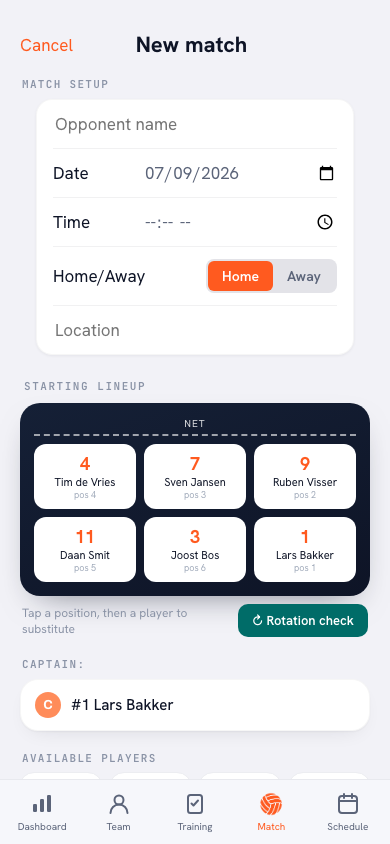
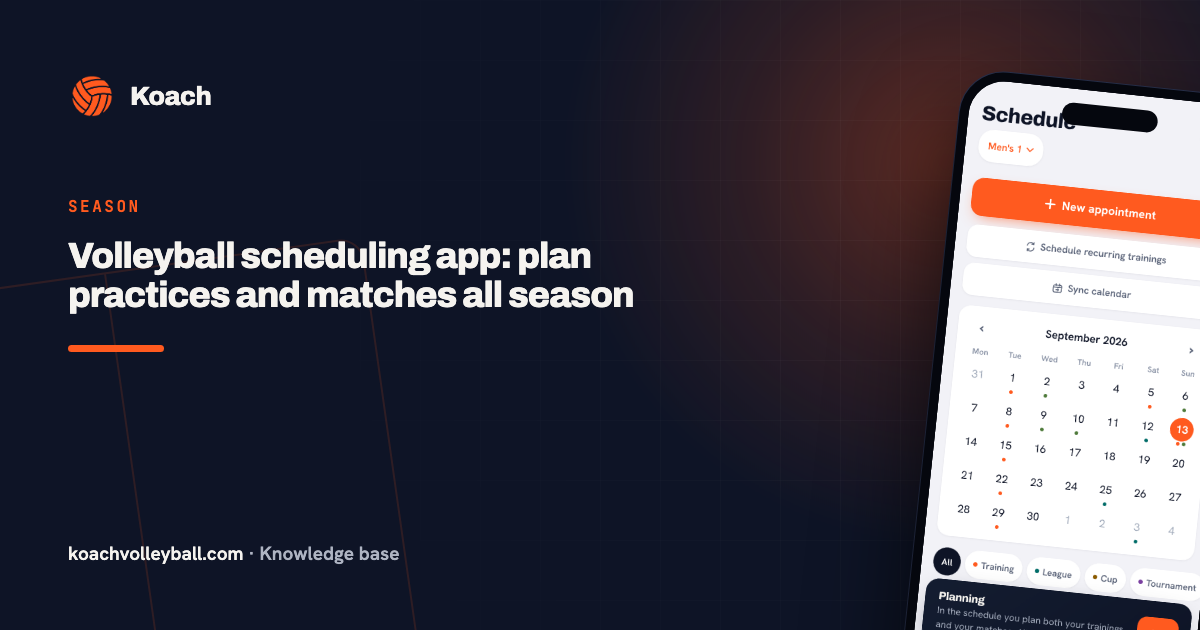
In Koach the match schedule lives in the team Schedule. Tap New appointment, choose Match and fill in: Home or Away, the type (League, Cup, Tournament or Friendly), the date and start time, and the opponent. Under Location you enter the name of the venue, with the field Venue address (optional) below it. The map link and the kilometres in the driving rota then use that address; why that matters is explained in entering the venue address. The app remembers every opponent, along with the venue where you played them away. Next time you schedule an away match against the same club, next season for instance, you pick the name from the suggestions and the app fills in the venue for you.
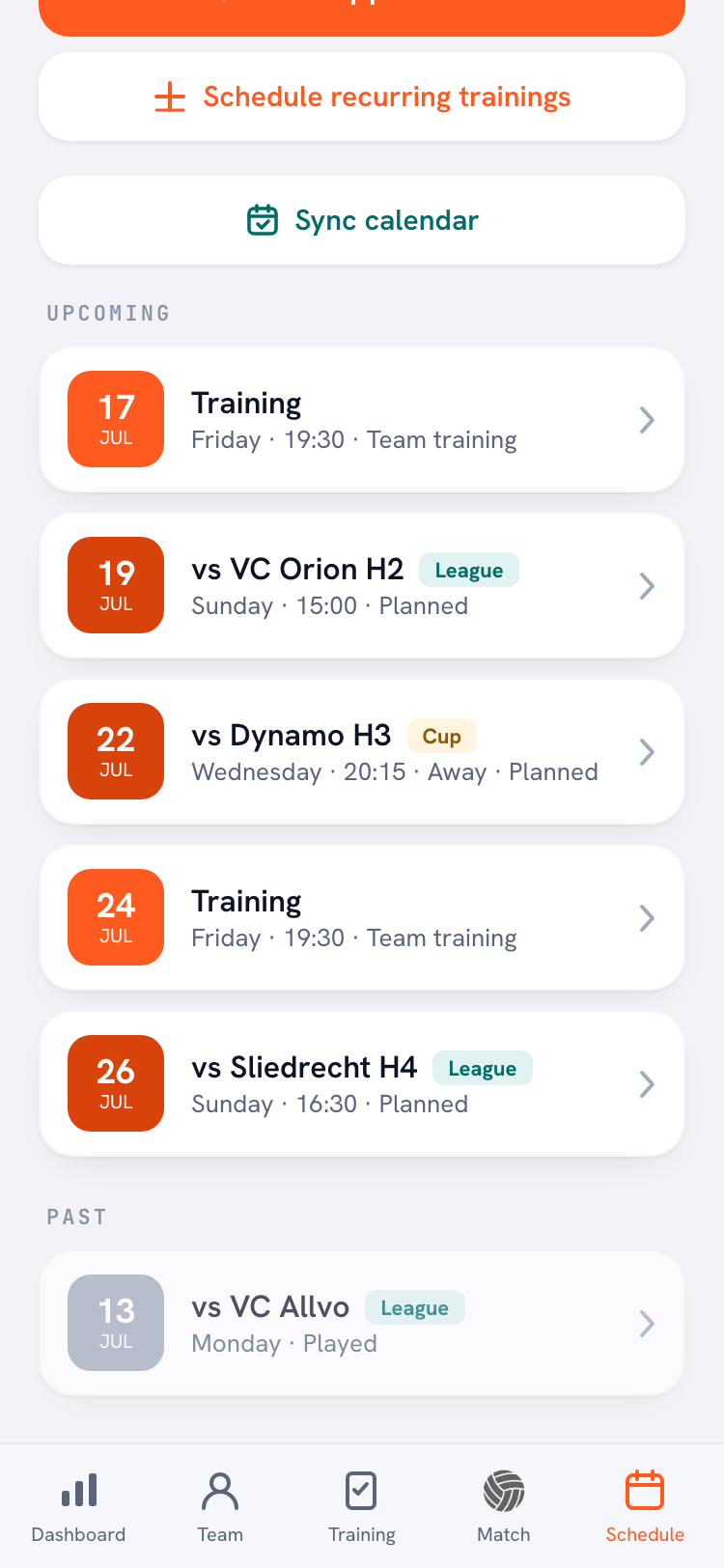
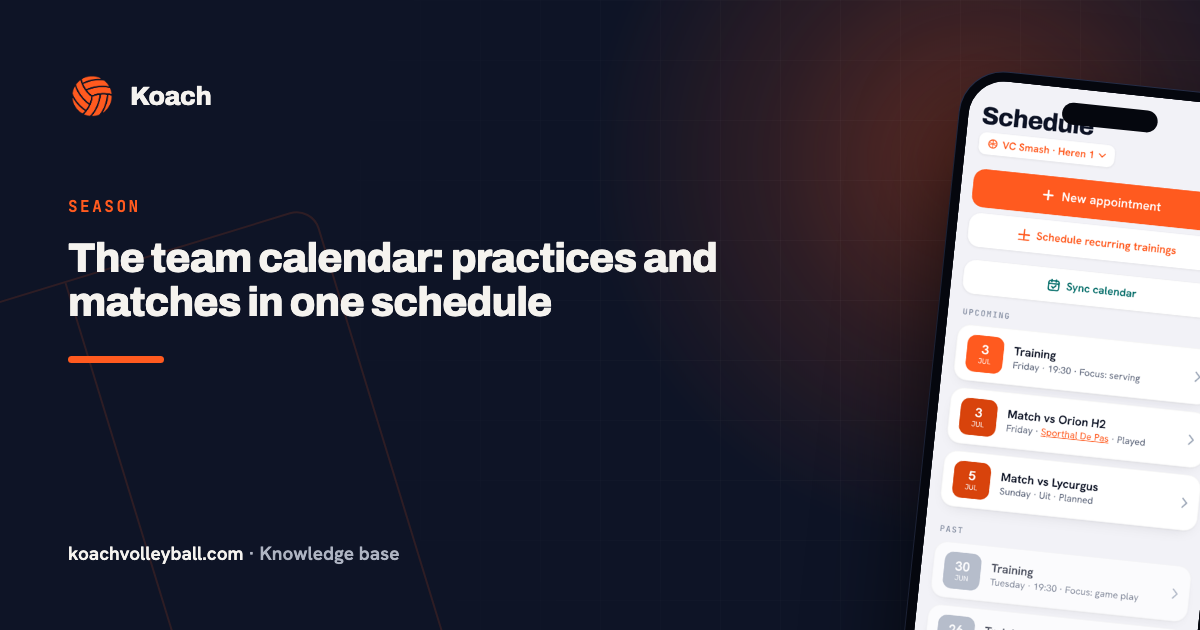
The schedule then shows all your upcoming matches in one list, with the day, the start time and the type; an away match says Away. Practices and other appointments sit in the same list. How the schedule works as a whole is explained in the team schedule for practices and matches.
Rescheduling without sending anything round
If a match is moved, tap Reschedule and pick a new date. The app spells it out right there: "Rescheduling means picking a new date. Sign-ups are kept and the team is notified automatically." If a match is off, choose Match cancelled and it no longer counts. That notification is a push message in the iPhone or Android app; anyone who only uses Koach in the browser sees the new date in the schedule.
The schedule in everyone's own calendar app
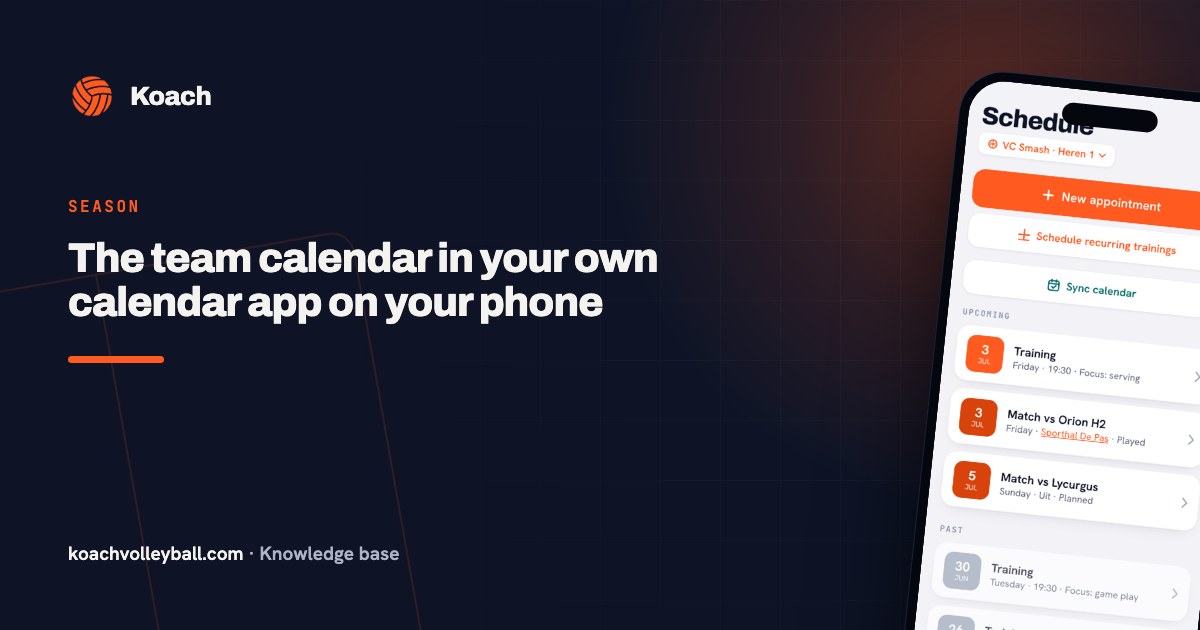
Under Sync calendar, tap Copy feed link and post that link once in the team group chat. Players and parents subscribe to it in their own calendar app, and from then on the matches sit between their own appointments; you can spot an away match by "(Away)" in the title. Reschedule a match in Koach and it moves there too, although it can take a few hours before a calendar app fetches the feed again. The steps for iPhone, Google Calendar and Outlook are in linking the team schedule to your phone.
Drivers, and what Koach doesn't do
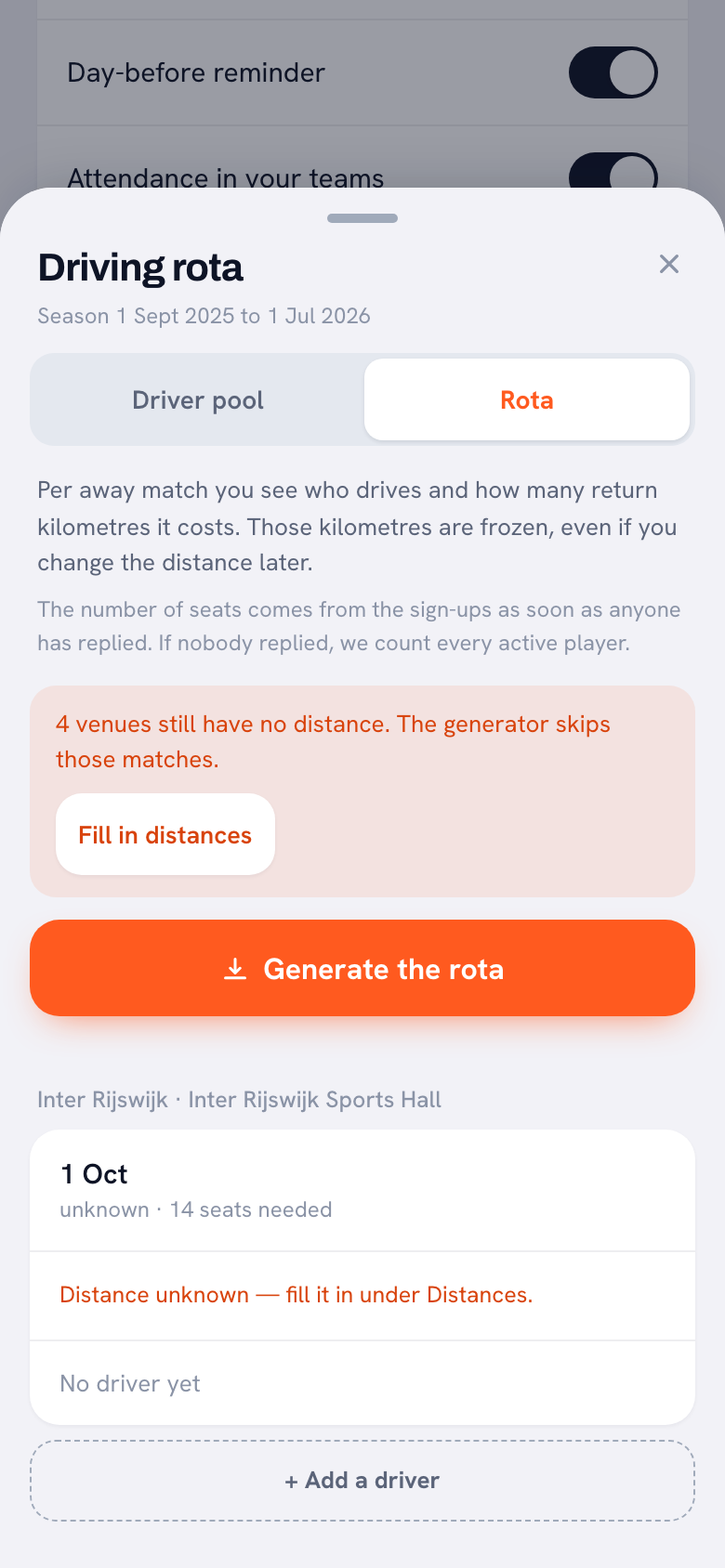
The Drivers column from the template is called the Driving rota in Koach. You add the parents who can drive to the Driver pool, with their number of seats, and Generate the rota shares out the away matches: whoever has driven the fewest kilometres is up first. Tournament days are deliberately left out; you sort those separately. Torn between a list, a spreadsheet and a rota like this? Read carpooling for your sports team. What Koach doesn't have is a separate field for the meet time. So agree on that time once for the whole season, or put it in an announcement to the team.
Who the template suits, and who the app suits
- The template suits you if your schedule is fixed and rarely changes, if your team has the same regular drivers every week, or if your club already uses another app and you just want a printable overview.
- Koach suits you if matches move regularly, if parents take turns driving and you want to share that fairly, and if, besides the schedule, you also want to know who's coming. The schedule is then no longer an extra list: you score the same match live later and find it again in your stats.
- Koach doesn't suit you if you want to draw up a tournament or a league for several teams; the app isn't built for that. Koach also doesn't do official scoresheets or send anything to your league or federation.
If you want to plan practices, camps and parent meetings in the same app as your matches, read about a scheduling app for your sports team first.
What does it cost?
The template is free and stays free. You can try Koach free for 14 days, with no credit card and every feature. After that you choose Coach for €2.99 per month (one team, two coaches) or Club for €9.99 per month (unlimited teams and coaches); on a yearly plan you pay €2.49 or €8.33 per month. Players and parents use the app for free. In the App Store and Google Play you see the price in your own currency. All prices are on the pricing page.
Put a date on every version. Write at the top of the sheet or in the file name when you last updated the schedule. When someone asks about a start time, you can see straight away whether they're looking at an old version.
Frequently asked questions
How do I make a volleyball schedule in Excel?
Give every match one row with the date, start time, home or away, opponent, venue and address, meet time, drivers and result. Turn home or away and the type of match into a drop-down list, so the spelling stays the same and you can filter. Add a column for travel time and Excel works out the meet time for you. Don't want to start from scratch? Download the free Excel template on this page: those formulas are already in it, along with a summary and a trip counter.
Can I open the Excel template in Google Sheets or Numbers?
It's an ordinary .xlsx file with standard formulas and no macros, so you can upload it to Google Sheets or open it in Numbers. After opening it, check that the meet time and the summary still calculate; in Numbers the automatic formatting (the orange cell and the crossed-out row) may be lost. A shared file beats an attachment that gets passed around, but even then parents get no notification when a match moves.
Can I import my matches from Excel into Koach?
No, Koach can't import an Excel or CSV file. You enter each match once in the schedule, with opponent, date, time, home or away and the venue. The app does remember every opponent, along with the venue where you played them away: when you later schedule another away match against that club, you pick it from the suggestions and the venue is already filled in. After that you never have to send the schedule round again: a rescheduled match reaches the team with a notification.
How do players and parents get the match schedule on their phones?
In two ways. With a free account they see the schedule in the Koach app and get a notification in the iPhone or Android app when you reschedule a match. Anyone who prefers their own calendar subscribes to the feed link you copy under Sync calendar. The matches then sit between their own appointments, and you spot away matches by (Away) in the title.
Is Koach free for players and parents?
Yes. Players and parents use Koach for free, in the app or in the browser. The coach can try Koach free for 14 days, with no credit card and every feature. After that Coach costs €2.99 per month for one team with two coaches, and Club €9.99 per month for unlimited teams. The template on this page stays free, with no account needed.
Put your season schedule in Koach tonight
14 days free, no credit card. The first rescheduled match tells you whether it works.
Get started with KoachOr read first what the volleyball coaching app does.