
Volleyball time-out: what do you say? The stats in those thirty seconds
You raise your hand, the referee whistles, and you have thirty seconds. In those thirty seconds nearly every coach reconstructs the last few minutes from memory. That memory is shorter and more one-sided than you think: it holds on to the last two rallies and the player who sighed loudest. The time-out sheet in Koach puts numbers next to it: about the set you are in, and from your second time-out also about the stretch since the previous one.
A coach's memory reaches back three rallies
A time-out rarely comes out of an analysis. It comes out of a feeling: it has stopped running, they are rolling over us, this has to stop. That feeling is usually right — but it is not a diagnosis. What you say in the huddle is then based on the two or three rallies that are still fresh, and those are almost always the most visible ones: an attack hit long, a ball that dropped between two players. The four service faults before that have already faded, even though they are what opened the gap.
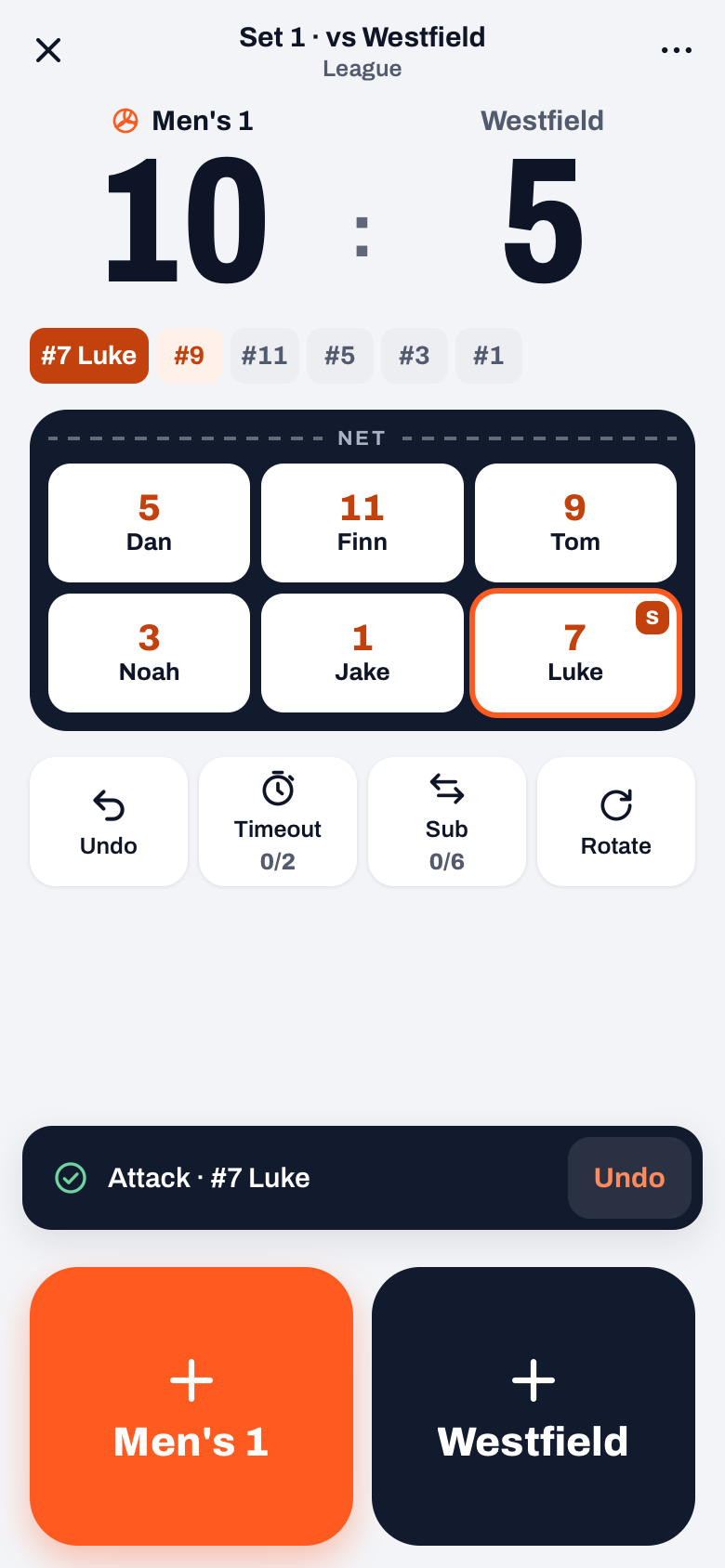
That is the gap this screen closes. The moment you tap Timeout in the app, in the row below the court or in Expert mode under ⋯ (More), the break is recorded and a sheet slides up with a look back. No match total, no season average: only the set you are in. The app does not request the time-out with the officials, by the way; you do that, as always. It only records it, and uses it as a boundary in the match.
The button carries a counter in the form 0/2. It counts the time-outs you have used in the current set and turns red as soon as you have had two. Under most international rulebooks that is your whole allowance for that set. So you never have to ask your assistant halfway through whether you still have one left.
Which stretch the look-back covers
At the top of the sheet you see the score in large type, one sentence summing up the set so far, the number of rallies in this set and the momentum wave. All of that covers the whole set in progress, just like the lines below it. Only from your second time-out onwards does one line appear that covers a shorter stretch: Since timeout 1, with the points for and against since your previous break.
That line is the trick. A number over a full set says little about the last few minutes any more. A running total over exactly the stretch in which you got the feeling things were slipping says everything about it. A set break works as a boundary: every set starts with a clean slate.
Take a set in which you called your first time-out at 8-12 and are now asking for your second at 13-20. Next to Since timeout 1 you then see 5-8: five points won, eight lost since your previous break.
Three lines, and that is on purpose
Below the score and the momentum wave there are at most three lines. More does not fit into thirty seconds, and more is not needed either.
- Most errors: the error type that came up most often this set, with the count behind it, for example Bad pass · 4. In Simple mode the app knows six kinds: serve error, attack error, bad pass, late, net or touch and other error; in Expert mode double touch, four hits and rotation fault are added. A point the opponent earns with a winner does not count here: that is not an error of yours, and it would muddy your diagnosis.
- Weakest rotation: the rotation in which you won the side-out least often this set, with the percentage, for example R4 · side-out 33%. Rotations in which you won every reception are left out. The numbering follows the usual convention: R1 is the rotation with your setter in position 1, and you count on from there. The same count you use after the match to find your weakest rotation.
- Since timeout 1: from your second time-out, the points for and against since the previous break, like the 5-8 from the example, with a small arrow that says whether that stretch went better or worse than the one before.
The Weakest rotation line only appears if you have marked a setter in your lineup: without a designated setter the app does not know which rotation you are in. That is not a malfunction, but it is a good reason to set that marker before the first serve.
The arrow that says whether it got better or worse
Behind the Since timeout 1 line there can be a small arrow. That is the comparison with the stretch before your previous time-out, and it is the only piece of history on the sheet. The app compares the balance, points for minus points against: if this stretch went better than the one before, the arrow points up; if it went worse, down. If the balance was exactly the same, there is no arrow.
At your first time-out of the set there is nothing to compare with and this line is not there yet. In the example above it stood at 8-12 at your first time-out, four points behind; since that time-out it is 5-8, three behind. So the arrow points up: it went slightly less badly, even if it is still not good. If it points down, you know your first time-out did not solve the problem.
That is exactly where the value of this arrow sits. It is the feedback on your previous break. What you said then either worked or it did not, and this is the only place you get to see that inside the match.
Key point: read from top to bottom and stop after the three lines. The score and the arrow tell you how bad it is, the error type tells you where it sits, the rotation tells you when it happens. The rest of the sheet is for when you have time left over.
The breakdown of this set, below the fold
Below the three lines there are two more blocks with bars: Points per type and Errors. Like the rest of the sheet they cover the whole set in progress; they sit at the bottom on purpose. In thirty seconds you usually do not get to them; in the longer break between two sets you do.
Points per type splits your own points into attack, block, ace and their error. Errors does the same with your own errors, sorted from many to few, with the count. In the set from the example above — 13 to 20 — it could look like this: of your thirteen points, seven came from an attack, one from a block, one from a serve and four from opponent faults. Of your faults, seven were passing faults, four service faults, two attack faults and one a net fault.
A breakdown like that changes your conversation. Seven passing faults in one set is no longer an individual problem, and four service faults in the same set means your risk on serve is not paying off. Note as well that your points against (twenty) are higher than your own faults (fourteen): the other six points the opponent earned themselves. That is information too — against an opponent who is scoring, you do not help yourself with a lecture about concentration.
The most important thing about these two blocks is that they are built with exactly the same rules as the match report you read back afterwards. What you see during the time-out is not a quick estimate that gets adjusted later. If the app says here that you have made four service faults, the report an hour later says four as well. That sounds obvious, but it is the reason you can base a substitution on this number without contradicting yourself afterwards.
Tapped it by accident? Turn it back
The Timeout button sits in the row below the court next to Undo, and that goes wrong once in a while, certainly with a phone in your hand in a packed gym. That is no disaster: press Undo straight after and only the time-out marker disappears. The score stays, the serve stays, the court stays, and the counter goes back down by one. So no point that you did record gets rolled back.
That matters more than it looks, because a wrong time-out left standing pollutes more than the counter. It is also the boundary at which the next look-back cuts off its stretch: leave it in place and your real time-out will start counting from a moment when nothing happened.
You close the sheet with the Resume button at the bottom, with the cross at the top right, or by tapping next to the sheet. In all three cases you are straight back on the live screen and the recording simply carries on.
What the sheet does not do for you
Two warnings. The first: these are small numbers. A stretch of thirteen rallies with four passing faults is a signal, not proof. What you see here is meant to direct your attention, not to pass judgement on a player — for that you look at several sets after the match.
The second: the sheet says what went wrong, not what you should do about it. Whether this is the moment for a time-out, and what message fits into those thirty seconds, remains coaching work. That is what using time-outs: when and how and match coaching on the sideline are about. This article is only about the numbers lying next to you at that moment.
The condition for everything above is that somebody is tapping along. Every number on this sheet comes out of the points you record during the match: tracking the match live is therefore not extra work alongside the time-out, it is what lifts the time-out from feeling to figure. If you only tap the score through without an error type, the score, the rotation and the line since your previous time-out still hold, but the Most errors line stays away.
Afterwards you can read the same story back at your leisure. The score progression of the set shows you exactly where it tipped, and your side-out percentage per rotation tells you whether the rotation the time-out sheet showed as weakest was an incident or a pattern. The time-out itself does not count as a rally, by the way — it is a marker, not an action, so it does not push any percentage.
Frequently asked questions
Can I look at that time-out sheet again later?
No. It appears only at the moment you record the time-out, and once you close it, it is gone. Tapping the time-out button again does not bring it back the way it was, because that tap immediately sets a new boundary in the match. The same numbers are in the match report afterwards, though.
I tapped time-out by accident and have already added a point since. Can that marker still go?
Yes, but undo always rolls back your most recent action. So roll that point back first, then the time-out, then tap the point in again. Only the marker disappears: the score, the serve and the court stay exactly as they are.
Can I use the button when the opponent takes a time-out?
Better not. The counter tracks only your own allowance for the set, so it will be wrong afterwards. More importantly, every marker cuts off the look-back, which means your next time-out starts counting from a moment that meant nothing for your team.
Does the app warn me if I take more than I am allowed?
Yes. The counter turns red as soon as you are on two, and the app does not record a third time-out in the same set: you get the message that you have already used 2 time-outs this set. The app also does not request the time-out with the officials, so the rulebook stays where it is.
Try it yourself in Koach
Less admin, more coaching.
Get started with KoachOr read first what the volleyball coaching app does.