
Editing without detours: matches, tournaments and calendar items
The hall has moved and the start time shifts by an hour. That shouldn't turn into a treasure hunt where you nearly start a match just to change the time. Everything in your calendar now simply opens and can be changed — and the calendar itself reads faster thanks to a colour per type.
A scheduled match: the detail first, then Edit
Tap a scheduled match in the calendar or on the Match tab and you land on the detail screen: date, time, home or away and the location one under the other, with the venue as a tappable map link. Top right sits Edit (coaches only). It opens the calendar sheet where you change the opponent — with its suggestion — the date, the time, home/away, the location and the match type. The delete button sits at the bottom of that same sheet.
Want to get going instead? The Start button is still at the bottom of the detail screen. Editing and starting have become two separate routes, rather than having to go through the start screen to change a time.
What else you can edit
- Tournament — Edit in the top right of the tournament detail changes the header and the matches. At the top sit the tournament's name, date and location; below that, per match, the opponent, the time and the set scores, and at the bottom the button to add another match. The app says so itself: statistics and attendance stay attached to the match, and a match that has already been saved can't be deleted here. Only the matches' date moves with the tournament date, because a tournament is a single day. Changing one individual played tournament match is still possible too, through the edit button on that match.
- Announcement — every message in the team feed now has Edit to put the text right. On a poll you now change the answer options as well; if people have already voted, the app warns you that changing the options wipes those votes — putting only the text right leaves them alone.
- Bar duty — the bar duty sheet has Edit for the club account or a club manager. You change the title, the date, the time and the number of People needed. Coaches can't: bar duties have one owner.
- Practice — the practice detail has an Edit button for the date, the time and the focus or note.
- One-off appointment — a team evening or any other calendar item you simply tap in the calendar; it opens straight into edit mode. Coaches only; players and parents do see the item but can't open it.
- Club announcement — a sent announcement in the club feed carries Edit and a cross for the club account or a club manager. Deleting asks for confirmation first: “Delete this announcement for all members?”. Editing and deleting deliberately send no new push notification — fixing a typo shouldn't set everybody's phone off again. What does appear under an edited announcement is a note that it was updated, with the date alongside, so anyone who had already read it notices the content has changed. Think of a cancellation that goes ahead after all.
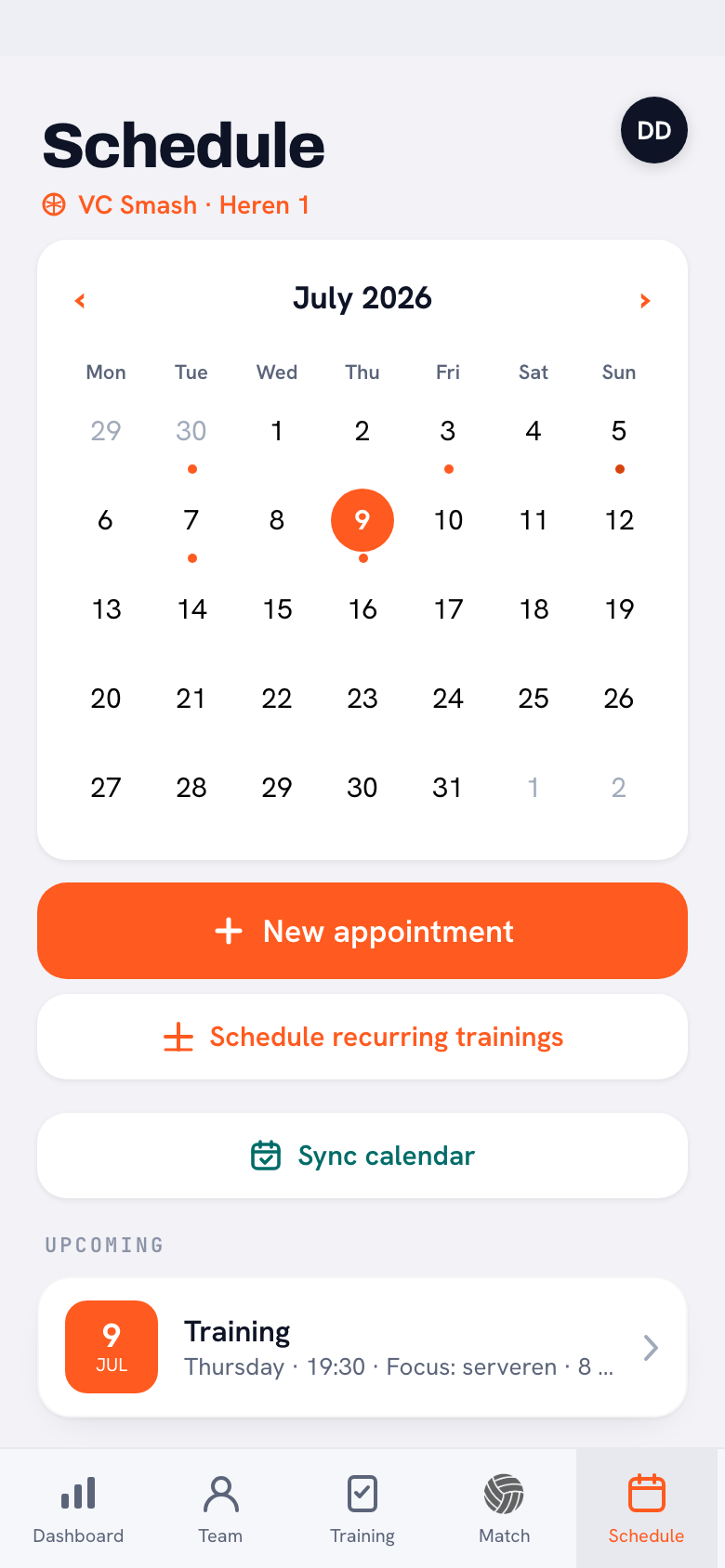
The calendar reads faster
Every type now has its own colour on the date block: practices orange, league matches teal, cup matches brown, tournaments purple, friendlies green, bar duties amber and one-off appointments slate blue. So you recognise the kind of day by its colour before you even read the title.
A text label next to the title only goes to the items whose title doesn't say it already: Training for practices and League, Cup, Tournament or Friendly for matches and tournaments. Bar duties and one-off appointments deliberately get no label — their title is the description, and a label would just repeat the same word. Driving to an away match yourself? Then the blue 🚗 You drive sits next to it; how that works is covered separately.
The friendly is the newest of the four. In the edit sheet you pick the type from four buttons in two columns — League, Cup, Tournament and Friendly — instead of four narrow buttons side by side. A match you set as a friendly in the calendar then stands out in green among your league days.
Change it in the calendar, not in the group chat. Adjust the item and send a “check the calendar” message at most. That keeps one version of the truth — which is exactly what a team calendar is for.
Frequently asked questions
Do I still have to tap start to edit a match?
No. A scheduled match opens on a detail screen with an Edit button in the top right. Start is still there below it, but it has become a separate action.
Do I lose results or statistics if I edit a tournament?
No. You change the tournament's name, date and location there, and per match the opponent, the time and the set scores. Statistics and attendance stay attached to the match; only the date moves with the new tournament date. A match that has already been saved can't be deleted on this screen — adding a match is possible.
Who may edit a bar duty?
The club account or an assigned club manager. Coaches can't change bar duties, so there stays one roster with one owner.
Can a player change something in the calendar?
No. Players and parents see the calendar and can sign up or off where that's possible, but changing practices, matches and appointments is for coaches.
Does the club get a new notification if I edit a club announcement?
No. Only sending counts as a new announcement; editing and deleting don't. So fixing a typo doesn't push the message back to the top of everyone's feed. Members do see a note under the announcement saying it was updated, with the date alongside.
Try it yourself in Koach
Less admin, more coaching.
Get started with KoachOr read first what the volleyball coaching app does.