
Recording committees at a sports club: the club behind the teams
Every club knows who does what. It just rarely gets written down anywhere: it sits in the secretary's head, in a spreadsheet two committee changes old, and in a messaging group where nobody remembers who was ever added. As long as that knowledge stays outside the club app, everything else stays outside it too.
The list that always stays next to the app
There is one thing a club always keeps track of itself, however good its systems are: the list of people. Not the players — they are in the teams — but the layer around them. The four people on the social committee. The two who look after the kit and the balls. The treasurer, who has no team, runs no practices and never opens the app, but sits at the table at every meeting.
That layer falls outside most club systems, and the reason is almost always the same: you can only put people in it who have an account of their own. So the secretary makes a separate file after all. And the moment that file exists it becomes the real source, because that is where everybody is. The rest of the club app then gets used half-heartedly at best, because the most important list does not fit in it.
The Organisation section in Koach's club dashboard is the place where that layer does fit. You record two things there: committees with their members and their role within them, and free-form groups — a volunteer pool, the people who help on a match day, the parents who drive. Nobody needs a Koach account for it: a member who never logs in is in there just as fully.
Where the organisation sits in the app
You will find it behind your own profile. Anybody who is a club manager sees the line Club dashboard there. That opens the club area: one list of sections, split into the groups People, Planning, Club and Data. Organisation sits in the group Club. How you get into the club dashboard and who you add there as a manager is in managing your volleyball club.
The screen itself is short. Two blocks under each other: Committees and Groups, each with + Add next to it. A committee shows its members under the name, with the chair in bold; a group shows its number of members. If nobody is in it yet, it says Empty. Tap a line and a screen of its own opens with the members listed. The difference between the two comes down to one thing: in a committee you can give somebody a role, in a group you cannot. That is deliberate. A committee has a chair; a messaging group does not.
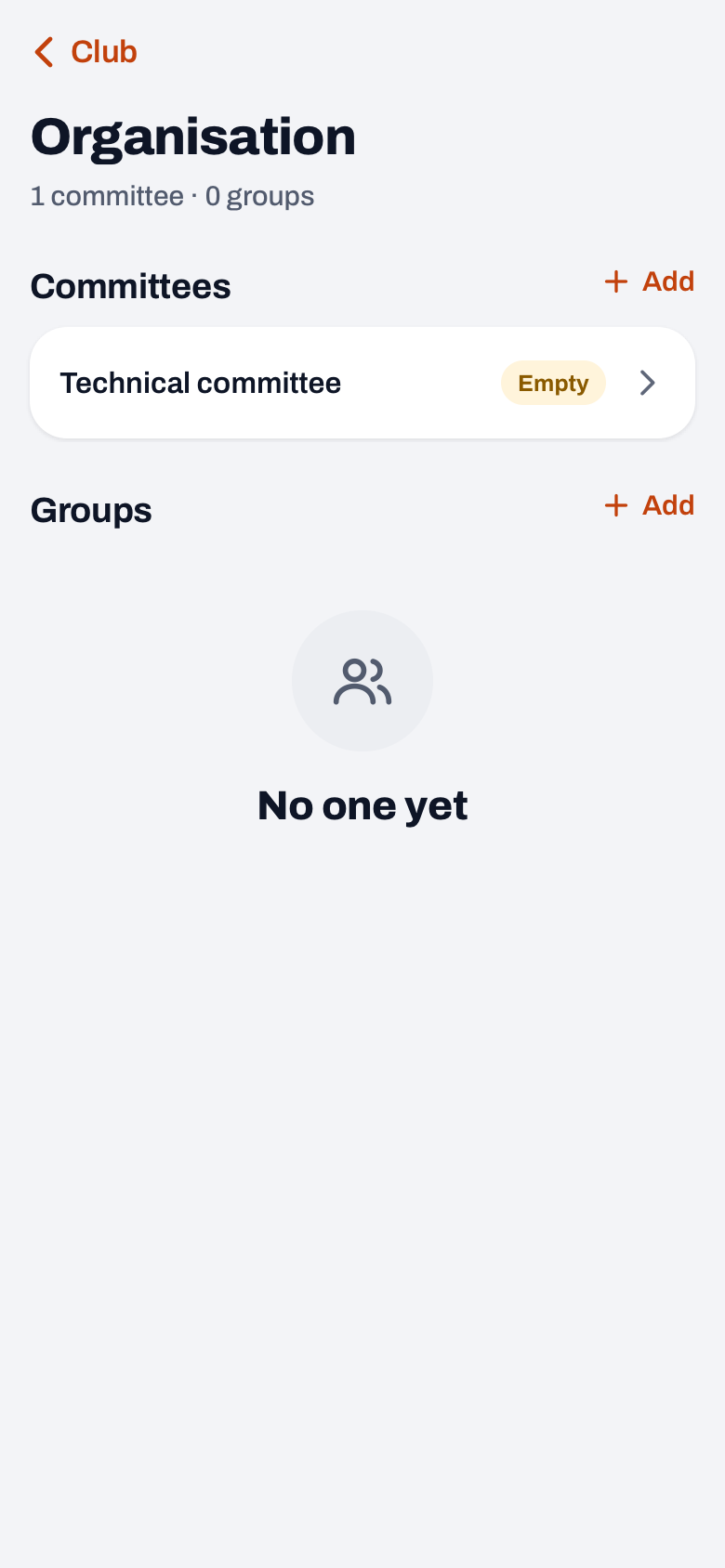
Creating a committee, with roles
Under Committees, tap + Add. A sheet slides up, Add committee, with two fields: Name and Description. That second field still shows Role (optional) as its example; you fill it in freely and it appears at the top of the committee's screen, under the name. Handy for something like "holds the key to the equipment store". Tap Save and the committee is there.
Then the people. Open the committee: at the bottom of the member list sits Add someone, and in an empty committee that button sits in the middle of the screen. That opens a list of the club's members: the players from every team, with the team name behind them so you can tell two people with the same first name apart. In a long list there is a search field at the top, on name or team, but you cannot type in a new name: you pick somebody who is already on the membership list. Pick somebody and, in a committee, a second question follows immediately: the role. You choose from Chair, Secretary, Treasurer, Member or No role. That choice is a fixed term rather than a free text field. It looks like a detail, but it is what makes the role come out properly on screen in every language and keeps you from ending up with three spellings of the same word in your club.
The members then appear under each other on the committee's screen, with their role as a label behind them; the chair is at the top. You take somebody out by tapping his name and choosing Remove; there is no confirmation, so tap calmly. Changing a role is not a single action: take the person out and add him again with the role that is right now. At the top right there is a pencil for changing the name or the description, and under the three dots Delete for the whole committee. That last one does ask for confirmation, because the members attached to it go with it.
What a committee actually decides is another story — the heaviest of them all gets its own piece in the technical committee. Here it is only about recording it: who is on it, and wearing which hat.
Three ways a name can be attached
Behind the scenes a name can hang off a committee or group in three ways, and the difference decides what the club can do with it.
- Through a Koach account. The strongest form. The name you see comes from the account: change your name there and it changes here too. And this person is reachable — he can receive club email.
- Through the membership list. Somebody who is on a club team as a player but does not log in himself. He belongs fully: he is on the committee, role and all. If he gets an account later on, his account name appears by itself.
- As a stored name. When you add somebody, Koach also stores the name as it stood in the list at that moment. If the player record later disappears — a member stops, a team is disbanded — the name stays on the committee instead of leaving an empty line behind.
One thing is worth knowing beforehand: you always pick from the club's membership list. Anybody who is not on it at all — the treasurer with no team who never opens the app — cannot be picked in this section. If you want him in the overview anyway, he has to exist as a member of the club first. An organisation overview with a few of the committee members missing is one nobody is going to use; one with everybody in it becomes the place you look, all by itself.
In short: somebody without a Koach account is on the list but gets no club email — when you send, he counts as skipped. The list is therefore always more complete than the send list; keep the two apart.
Groups: the same set-up, a different purpose
The second block, Groups, works the same way but without roles. You make as many as you like and you invent the names yourself: volunteer pool, hall duty, driving parents of the youngest teams, clubhouse help. That free-form character is the point — a club always has connections that fit in no box at all.
They serve two purposes at once. First they are an overview: one glance tells you who you can ask when somebody drops out. Second they are an address — when you send club email your groups sit as a separate option under the standard audiences, so a message goes to precisely those people instead of to the whole club. How to send one message to the entire club is in sending club announcements.
One list does not belong here at all, and that is why it sits elsewhere in the club dashboard: who can referee or keep score. That pool lives under Match day, under the heading Officials, alongside the matches you assign those people to. It is the same kind of reference — names, with a level and two switches per person, Can referee and Can score — but it hangs off the scheduling and not off the organisation. Look for it in Organisation and you are looking in the wrong place.
What to put in, and what to leave out
Stick to names, roles and a short description. There is no field for phone numbers or addresses in this section, and that is not an oversight: contact details belong with the member and not with the committee, otherwise you are updating them in four places. What a club may and may not record about its members, and for how long, is in which member data you keep.
Watch the number, too. A club that creates a separate committee for every little job has a stack of cards after one season, part of which no longer holds. A committee is something that meets or carries a responsibility. Everything below that is a job, and jobs are shared out differently — that is what doing a duty or buying your way out is about.
And write the names the way they sound in a meeting. "Social committee" beats "SC", because in two years' time nobody will remember what those letters stood for.
One moment a year when you bring it up to date
An organisation overview that is filled in once and then never again is unusable within two seasons. The remedy is not discipline but a fixed moment. Go through the section once a year, shortly after the general meeting where the committee changes are confirmed: new names in, departed names out, roles put right. That is done in one sitting.
Alongside that, one agreement within the committee: whoever asks somebody to join a committee puts him in that same evening. Not because the app demands it, but because reconstructing afterwards who was on what is exactly the work nobody does.
What you get back is small and dull and enormously useful. A new committee member sees in one screen how the club fits together. A coach who needs something knows who to go to. And the club has its own organisation in the same place as its teams, instead of in a file on the laptop of somebody who stopped last year — the same move as with the teams themselves, described in from paper membership list to digital team management. That the club itself has a place in the app, alongside its teams, is what Koach for volleyball clubs is about.
Frequently asked questions
Do players and parents see what I fill in here?
No. The Organisation section sits in the club area, and only the club manager and the board can open it. The committee list never appears anywhere in the app of a player, a parent or a coach. If you want the club to know who is on what, you have to share that yourself, with a club email for instance.
I tapped somebody out of a committee by accident, can I get that back?
Not with an undo button: the name is gone immediately, with no confirmation question. You add him again through Add someone and pick the role again while you are there. Nothing else is lost, only that one line had disappeared.
Can the same person be on several committees and groups?
Yes, and that is the intention: every card has its own member list. Somebody can be chair of one committee, an ordinary member of another, and be in two groups besides. There is no maximum on the number of committees, groups or members.
Does everybody in a group really receive my club email?
Not necessarily. Anyone without an account with an email address counts as skipped when you send, and anyone who has previously unsubscribed from club email does not get it either, even though he is neatly in the group. If somebody is in a group twice, Koach sees him as one person and the message goes to him once.


Try it yourself in Koach
Less admin, more coaching.
Get started with KoachOr read first what the volleyball coaching app does.