
Volleyball club membership list: every team on one screen
How many members does the club have right now? It is the simplest question at a committee meeting and usually the slowest one. Someone promises to ask the coaches, and three weeks later a list appears that is already out of date. In Koach that list is waiting for you: the Members section shows every player of every team at once.
Why nobody knows the real number
A club rarely keeps its membership list in one place. The treasurer has a file of who pays the fee, the match secretary a list of who is eligible for the league, and every coach has their own squad in a group chat on their phone. Those three slowly drift apart, because they are updated at different moments: a player who quits halfway through the season disappears from the team chat within a week, stays in the fee file until the end of the season and was never entered in the third list at all.
You know how that ends. Nobody is lying, and yet not a single number is right. The question “how many members do we have” gets three answers, and the question “who is actually in that new women's team” gets none. So the board does what boards do: a round along the coaches, asking them to send their little list over. That takes a week, produces seven different formats, and starts all over again three months later.
The way out is not yet another file, but one place where the data already sits. Coaches keep their squad in Koach because they need it themselves — for the line-up, for attendance, for the match. Add that work up across every team in the club and you already have the membership list. Adding it up is what the Members section does, and it happens at the moment you open it.
Where the list sits
The membership list lives in the club section, not in the team screen. Go to Profile and tap Club dashboard. You see a list of the club's sections that belong to your role; Members is at the top, in the group People. Tap it and the list is fetched. The tiles Players and No account at the top of the club dashboard open the same list, the second one with that filter already on.
You only see that way in if you have been given a role in the club. A coach who keeps their own team up to date never comes here — and does not need the club's list either. Who counts as a club manager and how you add one is in managing your volleyball club. Only teams actually linked to your club are counted; a team that has not filled in the club name yet is not among them.
What you see next was not entered by the board. It is the sum of what the coaches were already doing this week. If a coach adds a new player today, that player is simply there at tomorrow's meeting — with nobody having run an export, and nobody having had to forward a file.
What each member's line tells you
Every line starts with the member's name: first name and surname, as the coach typed them, followed by their age if your role sees contact details. Underneath there may be a second line and on the right a label, and together they tell you the important part straight away:
- An email address. The member has their own Koach account and this is the address they log in with. So you need not ask whether somebody is reachable.
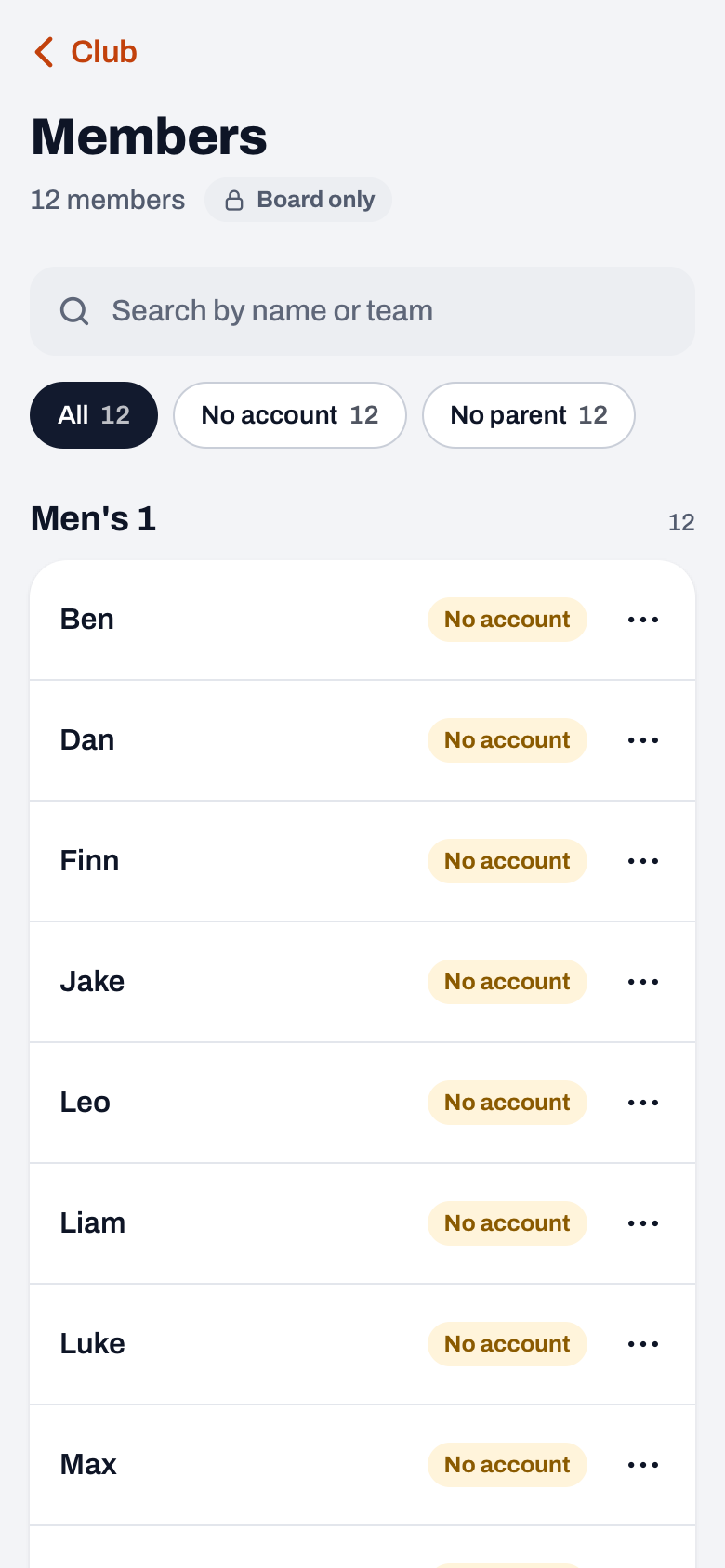
- No account. This label sits on the right. The player is in the team but has never linked the app. Often that is a young player; sometimes it is an invitation that fell between two stools. If you see several in a row, the club manager and a board member can create a link right here: tap the three dots next to the name and choose Invite; there you create a player link or a parent link. The coach can do it too: inviting players with a link takes them no time at all.
- Parent: name. For youth players the linked parents sit underneath; their own address is in the sheet that opens with the three dots next to the name. For an under-age member that is exactly the line you are looking for when something has to be arranged. How that link comes about is in adding parents to your team.
To the right of the name there may be a small label with the member's status. If there is nothing, the player is simply active; if there is something — injured, absent, inactive — the coach set it that way. That is more useful to a board than it looks. A team with twelve members on paper that trains with eight is something you spot here at a glance, and that is worth a conversation about a stand-in or a partnership before the matter solves itself through a resignation.
A name may also carry the label Training-only player. That is somebody who joins the sessions without belonging to the regular squad, for instance in the run-up to a new season. For your membership records that is a real difference: a training-only player is usually not yet a paying member, so you want to see them listed without counting them in.
Searching by name or team
At the top sits a single field: Search by name or team. It searches both at once. Type a name and you keep that person; type part of a team name and you keep that whole team. Below the search field are filter buttons with a count behind each: All, No account and No parent, the last one only if your role sees contact details. One tap gets you everyone without an account or without a linked parent.
Above the search field, under the title, sits the club's member count. That is the number the committee meeting asked for, and it is not a snapshot from a while ago. When you search or filter, it shows two numbers: how many members are left and how many there are in total. So you keep the total for the whole club in view while you search.
The list itself is grouped by team, on team name. So you do not scroll through three hundred names in alphabetical order, but past the teams you know, with their players underneath. That matches how a club talks about itself: nobody asks “how many members between M and P”, everybody asks “how is Women's 3 doing”.
One thing is worth knowing: somebody who plays in two teams appears twice — once under each team. That is not a bug but the intention. The status is correct per team: the same person can be active in one team and injured or inactive in the other. So when you count members here you are counting places in teams; if you want to count heads, take a moment for the duplicates. A club usually knows exactly who they are.
You don't edit details here, and that is the point
You do not change details on this screen. No editing a name, no removing a player, no correcting an address. That feels like a limitation at first and is in fact the reason the list is right. Two things do work, and only for the club manager and a board member, through the three dots next to a name. Move to team moves a player to another team of the club, for example halfway through the season: one tap on the new team and they are in it, with their figures. If you tapped the wrong one, Undo in the message puts them back. More on that in moving a player to another team. And Invite creates a player link or a parent link for a member, which you share or copy straight away.
Member data needs one owner, and that is the coach of the team. They see the player every week, they know who has quit and who got injured, and they adjust it because they need it themselves for next weekend's line-up. If the board could edit it too, you would get back exactly the problem this screen was built to solve: two people updating the same line, and nobody knowing which version is the latest.
So if something is wrong, the route is: ring the coach of that team. They change it in their own team screen — via the player and Edit player — and the next time you open the membership list it is correct. That is the same working principle as the rest of digital team management: data is entered where it arises, not where it is read.
Two things are therefore deliberately missing here. Coaches and assistants are not in this list — it is a list of players, not of everyone walking around the club. And a parent has no line of their own; they sit under the child they belong to, because that is the reason they are in the app.
Who may see contact details is decided on the server
This is the most sensitive screen in the whole club section. It holds names, addresses and the contact details of parents of under-age members, right across every team — precisely the kind of list you do not want floating around everywhere.
So Koach works with two levels here. The first opens the door: names and teams. The second decides whether the contact details come along: the email addresses, the link to an account and the parents. Which level belongs to which role is fixed in the role itself. You pick it under Admins, where next to an email address you also set a Role: every club role may see the names and teams, but not every role gets the contact details with them.
More important is how it works. If a role may not see the contact details, they are not hidden on the screen: they are never sent to the device at all. What is not there cannot leak through a screenshot, a shared phone or somebody handier with technology than expected. The screen then simply shows names, teams and statuses — a perfectly good membership list for most questions a board has.
If the addresses are included, it says so: behind the member count you then see the label Board only, with a padlock. Not a legal warning, just a reminder at the moment it matters. What the club has to arrange beyond that — on what basis you keep member data, for how long, and what happens if something goes wrong — is in GDPR and your club's member data.
In short: do not retype this list into a spreadsheet. What you retype is a second truth from that moment on, and it is guaranteed to fall behind the first. If you need the data outside the app, take the club export: that fetches it in one go, exactly as it stands in Koach at that moment.
What it gets you
The real difference is not in the feature but in what disappears. No more round along the coaches for an up-to-date overview. No file that one person keeps and that stalls the moment that person sits a season out. No argument about which number is the right one.
Instead, just before the meeting you open the club dashboard, tap Members, and read out what is on the screen. Takes a minute, and it is correct — because it is the same work the coaches were doing this week anyway. The membership list is one part of the club side; the whole of it is on the page for volleyball clubs.
Frequently asked questions
Who can view the club's membership list?
Everybody who holds a role in the club: the club manager, the treasurer, a board member, the confidential adviser and the technical manager. You open it through Profile → Club dashboard → Members. All five of them see the names and the teams; the email addresses and the linked parents come along only for the club manager, the treasurer and the board. A coach who only runs their own team does not see that way in and simply keeps their own player list.
Can I change details in the membership list?
No, you do not change details here. The only things you can do are move a player to another team and invite a member with a player or parent link, through the three dots next to the name, and only the club manager and a board member may do that. Changes are made by the coach of that team in their own team screen, via the player and Edit player. That way every piece of data keeps one owner and no two versions start running side by side.
Why does somebody appear twice in the list?
Because they play in two teams. A player exists per team, so that status, shirt number and attendance are correct for each team separately. They therefore appear under both teams, possibly with a different status.
Why do I see no email address for some members?
There are three possible reasons. The member has not linked an account of their own: then the label 'No account' sits on the right. A parent is linked: then the parent sits under the name and you find the member's address in the sheet behind the three dots. Or your role in the club gives no access to contact details; in that case they are never sent to your device and nothing is shown.
Are coaches and parents in the membership list too?
Coaches are not: this is a list of players per team. Linked parents do appear, but not as a line of their own: they sit under the child they belong to, with their name; their address is in the sheet behind the three dots.



Try it yourself in Koach
Less admin, more coaching.
Get started with KoachOr read first what the volleyball coaching app does.