
Team snack schedule template: snacks, jerseys and the ball bag
The short answer
A team snack schedule template lists, game by game, which family brings snacks, who washes the jerseys and who brings the ball bag. It stays fair when every family takes a turn at every job. In Koach you post this week's job as a task on the dashboard, and players or parents tap I’ll do it.
A team snack schedule stops the same three parents from handling the snacks, the laundry and the ball bag every single week. Below is a free template that rotates fairly through the whole season, plus how to post this week's job in Koach so everyone can see who has picked it up.
What goes into a team snack schedule?
Every volleyball team comes with jobs that have nothing to do with volleyball but come back every week. Without a schedule, the same parent ends up doing them, or nobody does, and you only notice when there are no snacks after the game or the jerseys are still sitting dirty in someone's bag. A schedule that works covers five things:
- Only the jobs that really repeat. Snacks or something to eat after the game, washing the game jerseys if your team shares a set, bringing the ball bag with the balls pumped up, and on youth teams often setting up and taking down the net. The shorter the list, the better people stick to it.
- One row per game. Number the games and leave the dates off the schedule. If a game is called off or moved, the list simply moves along and nobody loses their turn.
- Families, not players. On youth teams the parents usually do the jobs, and two siblings on the same team count as one family. On adult teams you put the players themselves on the schedule.
- Rotate the jobs too. Washing jerseys is more work than bringing snacks. So don't just rotate the families, rotate the jobs as well, so nobody is stuck with the laundry all season.
- A swap rule. If you can't make your turn, you swap with another family yourself and update the schedule. That way the coach doesn't have to play go-between.
What doesn't belong on it: the work around the game itself, like keeping score or checking who's available. Those are jobs you can hand off as a coach, and that's covered in sharing out coaching tasks. Club-wide volunteer shifts don't belong on it either: the club handles those, not one team's schedule.
Team snack schedule template: how the season rotates
The template below is built for a team with twelve families and three jobs per game. Copy it onto paper or into a spreadsheet (Google Sheets works fine) and replace the numbers with names. Each game, three different families are up, so after four games everyone has had one turn. In the second round each job moves over one spot: the family that brought snacks in round one now brings the ball bag. After three rounds, so twelve games, every family has done every job exactly once.
| Game | Snacks | Jerseys | Ball bag |
|---|---|---|---|
| 1 | Family 1 | Family 2 | Family 3 |
| 2 | Family 4 | Family 5 | Family 6 |
| 3 | Family 7 | Family 8 | Family 9 |
| 4 | Family 10 | Family 11 | Family 12 |
| 5 | Family 2 | Family 3 | Family 1 |
| 6 | Family 5 | Family 6 | Family 4 |
| 7 | Family 8 | Family 9 | Family 7 |
| 8 | Family 11 | Family 12 | Family 10 |
| 9 | Family 3 | Family 1 | Family 2 |
| 10 | Family 6 | Family 4 | Family 5 |
| 11 | Family 9 | Family 7 | Family 8 |
| 12 | Family 12 | Family 10 | Family 11 |
Got more or fewer families? Divide the number of families by the number of jobs. With ten families and two jobs, one round takes five games. If it doesn't divide evenly, the next round starts partway through a game; that's fine as long as you keep the order. If your season has more games than the template has rows, just start again from the top after the last row.
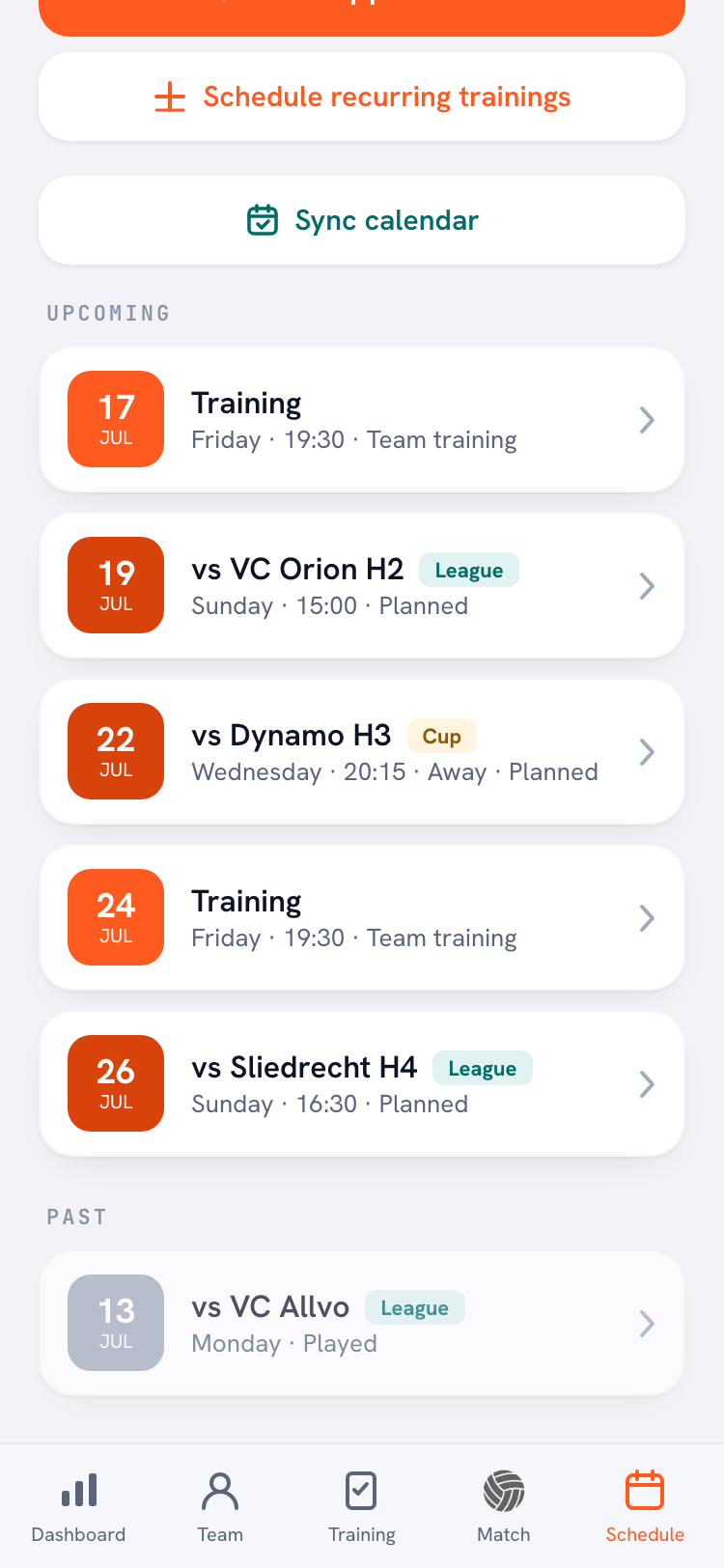
How many rows you need is easy to see in Koach. If your games are already in the app, the Schedule tab lists them in order under Upcoming, with the day, the start time and, for an away game, the word Away. That way you number your snack schedule in the same order as the season. Share the schedule itself with the team once, at the start of the season: as a file by email or in the group chat, or as text in an announcement on the dashboard. As newer messages come in, that announcement moves down; tap Show all to find it again.
Paper, spreadsheet, group chat or Koach: the options side by side
We make Koach, so read this comparison as coming from an interested party. The honest conclusion: you're best off building the schedule itself in a template, and an app only helps with this week's job.
| What you want | Template | Group chat | Task in Koach |
|---|---|---|---|
| The whole season at a glance | Yes | No | No |
| Rotate the jobs fairly | Yes | No | No |
| See who has this week's job | In the schedule | Scroll back up | Yes, by name |
| Phone notification | No | Yes | Yes, in the app |
| Backing out | Cross it off | New message | Tap again |
| Cost | Free | Free | €2.99 per month after 14 days |
The strength of paper or a spreadsheet: you see the whole season at a glance and it costs nothing. The strength of the group chat: everyone is already in it. What both lack is one place where this week's job sits and where you can see that someone has picked it up, without it getting buried among the everyday messages. That's what the task in Koach is for. How announcements, polls and tasks work together is explained in team communication with announcements, polls and tasks.
Team snack sign-up in Koach: post this week's job as a task
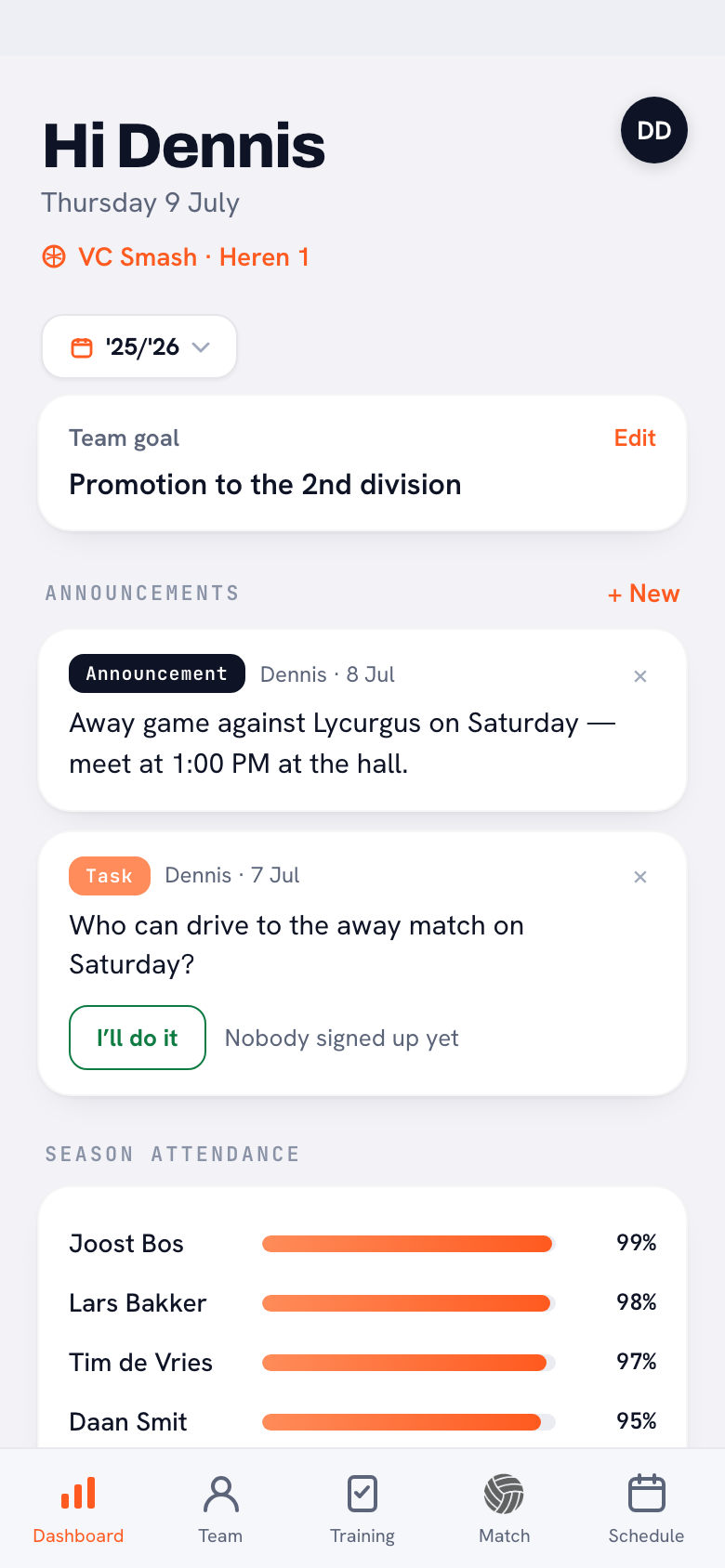
- Open the announcements. On the Dashboard you'll find the Announcements block. As a coach, tap + New on the right; players and parents don't see that button.
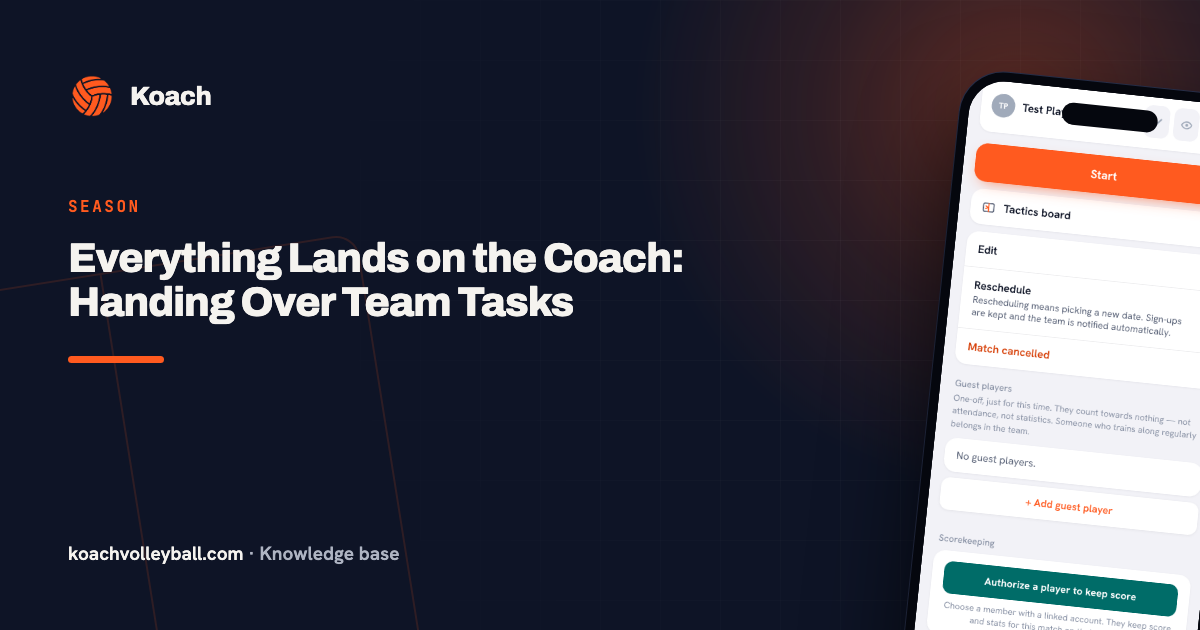
- Choose Task and describe the job. At the top you choose between Announcement, Poll and Task. Pick Task, describe the job as specifically as you can, including the name of whoever is up according to the schedule, and tap Post.
- The team taps I’ll do it. Players and parents see the task on their own dashboard. Whoever takes it on taps I’ll do it and then appears under the task with their first name. As long as nobody has tapped, it says Nobody signed up yet. If two people tap, both names show. The app doesn't prevent that; if you put the name from the schedule in the task, everyone knows who's meant.
- Backing out uses the same button. If it doesn't work out after all, they tap I’ll do it again and their name disappears. The next time you open the dashboard, you'll see the job is open again. You don't get a separate notification about it.
When you post a task, the team gets a notification on their phone, as long as they use the app on an iPhone or Android phone and have notifications for team messages turned on. In the browser they see the task as soon as they open Koach. Parents can only take part if they have their own account on your team; how that works is explained in adding parents to your team. For players and parents that account is free.
14 days free, no credit card. Add your team, post the first task for your next game and see who taps.
Post your first task in KoachWhat Koach doesn't do with your snack schedule
To save you a disappointment, here's exactly what the app doesn't do:
- No schedule and no assigning. Koach doesn't build a snack schedule and doesn't pick whose turn it is. A task is an open call: whoever taps does it. If you want a fair rotation, set it down in the template and put the name of whoever is up in the text of the task.
- No date and no repeat. A task isn't linked to a game in your schedule and doesn't come back on its own every week. You post it each time, and tap the × to remove it once the job is done.
- No count per family. The app doesn't keep track of how often someone has done a team task. That's what your template is for.
- No thread under the task. You can't reply to a task. If someone wants to swap, they sort it out themselves and the other person taps I’ll do it.
What does come in handy around the schedule is the Poll. Use it to let the team decide up front, for example whether snacks come along only for home games or for every game. Everyone picks one option and you see how many votes each option got. The poll doesn't show who picked what, so it's not a tool for assigning names.
Driving to away games: that's what the driving rota is for
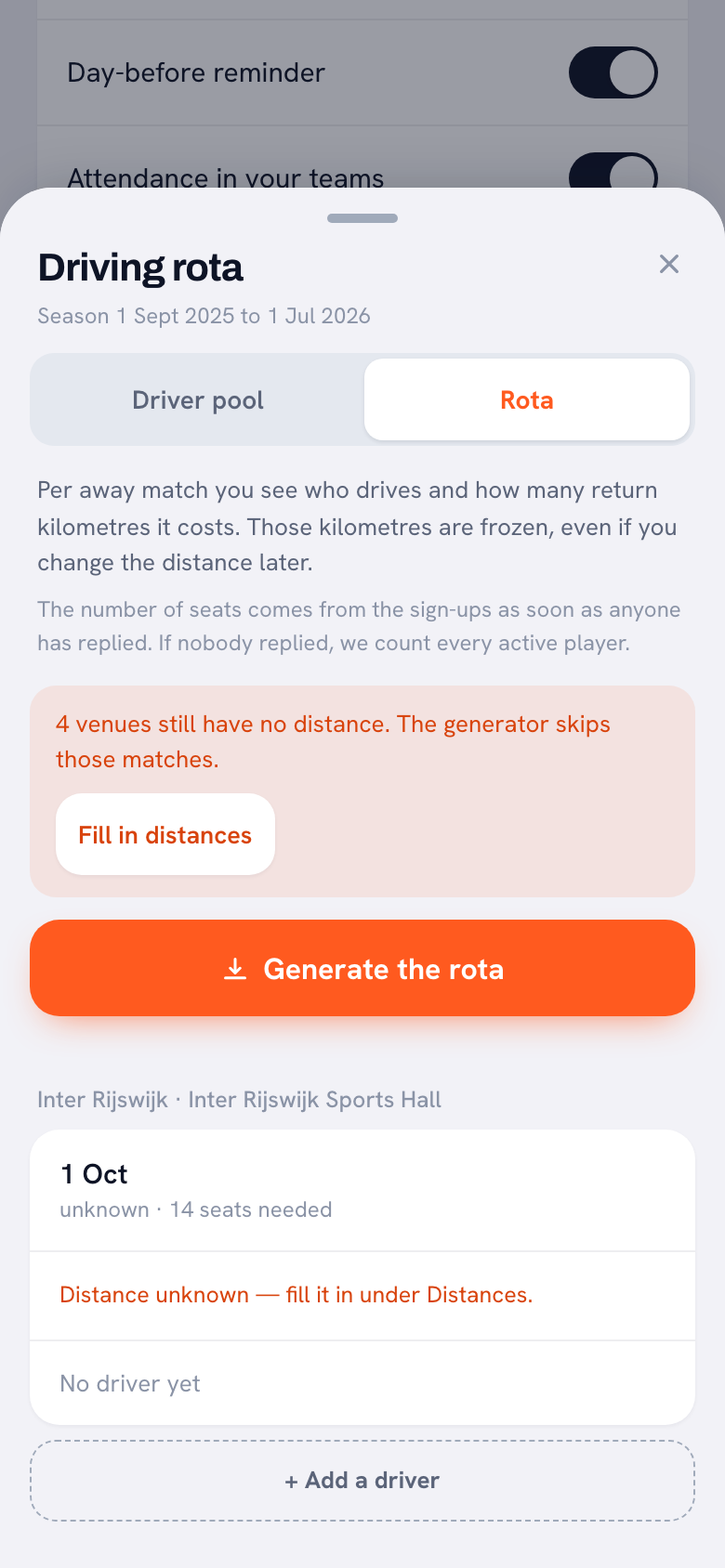
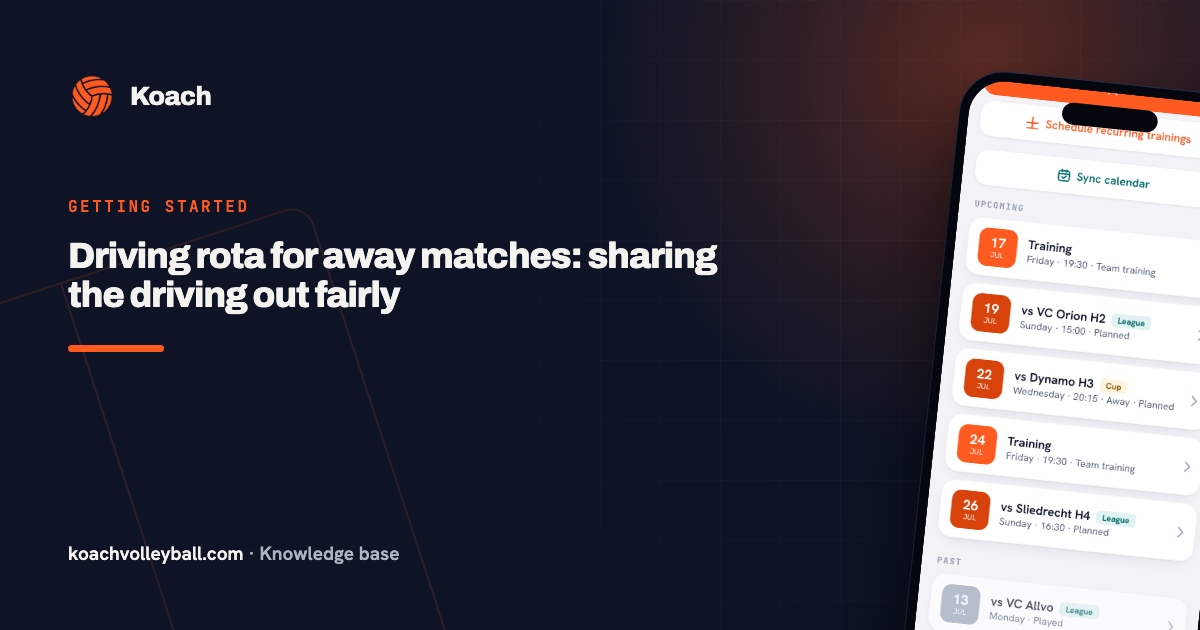
Driving looks like just another job, but it's harder to split fairly: one away game is around the corner, the next is a long drive. That's why it isn't on this schedule. Koach has a separate driving rota for it, with a driver pool and the distances to your opponents' gyms. Whoever has driven the least distance so far is up first. Tournaments are deliberately left out: you arrange that transport separately. Which way of carpooling suits your team, a list, the group chat or the driving rota, is covered in carpooling for your sports team. How to set up the rota is explained in the driving rota for away games.
Who this is for, and who it isn't
It's a good fit if you coach or manage a volleyball team where parents or players handle the same handful of jobs every week, and you want your team admin in one place: the schedule, availability, the lineup and messages. You make the snack schedule once with the template and post the weekly call in Koach. What else comes with running a team is covered in managing a volleyball team as a coach.
It's not a fit if you're looking for an app that builds a snack schedule for you and rotates the jobs automatically: Koach doesn't do that. It's also of little use for a team in another sport, because the rest of the app, from the lineup to live scoring, is made for volleyball. And if you need a schedule for the entire club, with every team and member on it, this article is too narrow: it's about the jobs around one team. For club-wide shifts, read about the volunteer schedule for your club.
What does a team snack app cost?
The template costs nothing: copy it onto paper or into a spreadsheet. You can try Koach free for 14 days with one team, no credit card. After that you choose Coach at €2.99 per month (one team, two coaches) or Club at €9.99 per month (unlimited teams and coaches). On a yearly plan you pay €2.49 or €8.33 per month. Players and parents pay nothing. All prices are on the pricing page; in the App Store and Google Play you see the price in your own currency.
Put the name of whoever is up in the task. An open question like 'who's bringing snacks?' tends to get picked up by the same parent every time. Write something like 'Snacks for this weekend's game: according to the schedule, that's the Johnson family. Does that work?' That keeps the schedule fair, and the right person taps I’ll do it.
Frequently asked questions
How often is each family up on a team snack schedule?
It depends on the number of families and jobs. Divide the number of families by the number of jobs per game: with twelve families and three jobs, everyone is up every four games. If you rotate the jobs too, after twelve games every family has done every job once. That way nobody gets stuck with the laundry all season.
Can Koach assign snack duty automatically?
No. Koach doesn't build a snack schedule and doesn't choose whose turn it is. A task is a call on the dashboard that players and parents answer with I’ll do it. You set down the fair rotation in a template. For driving to away games, Koach does have a separate driving rota that splits the rides by distance driven.
Can parents sign up for snacks in the app?
Yes, if they have their own parent account on your team. They see the task on their dashboard and tap I’ll do it; their first name then appears under the task. A parent account is free and works in the app and in the browser. They only get a phone notification in the iPhone or Android app.
What if a family can't make their turn?
Leave swapping to the families themselves and agree that whoever swaps updates the schedule. In Koach, the person who had already tapped taps I’ll do it again to back out. The task is then open again and someone else can pick it up. As a coach you can see whether the job still needs covering without chasing anyone.
How much does Koach cost for one team?
You can try Koach free for 14 days with one team, no credit card. After that Coach costs €2.99 per month for one team with two coaches, or €2.49 per month on a yearly plan. Players and parents use the app for free. The snack schedule template in this article costs nothing.
Post your first team task tonight
14 days free, no credit card. By your next game you'll see who's bringing the snacks.
Get started with KoachOr read first what the volleyball coaching app does.