
Referee and scorer rota for home matches: the Match day section
On Thursday evening there is still no name against Saturday's matches. Somebody has to referee, somebody has to keep score, and usually somebody has to open the hall as well — three slots per match, and on a full match day five matches back to back. It is the job that comes round every single week and that every club goes looking for people to do, every season again. The Match day section was built for exactly that little list.
What has to be arranged for every home match
At a home match the host club supplies the people around the court. In most leagues that means three of them: someone to referee, someone to keep the scoresheet and work the scoreboard, and someone who has the hall open, puts the nets up and is the person to go to when something goes wrong — the hall duty. At an away match the opposition arranges all of that, so there is nothing for you to do.
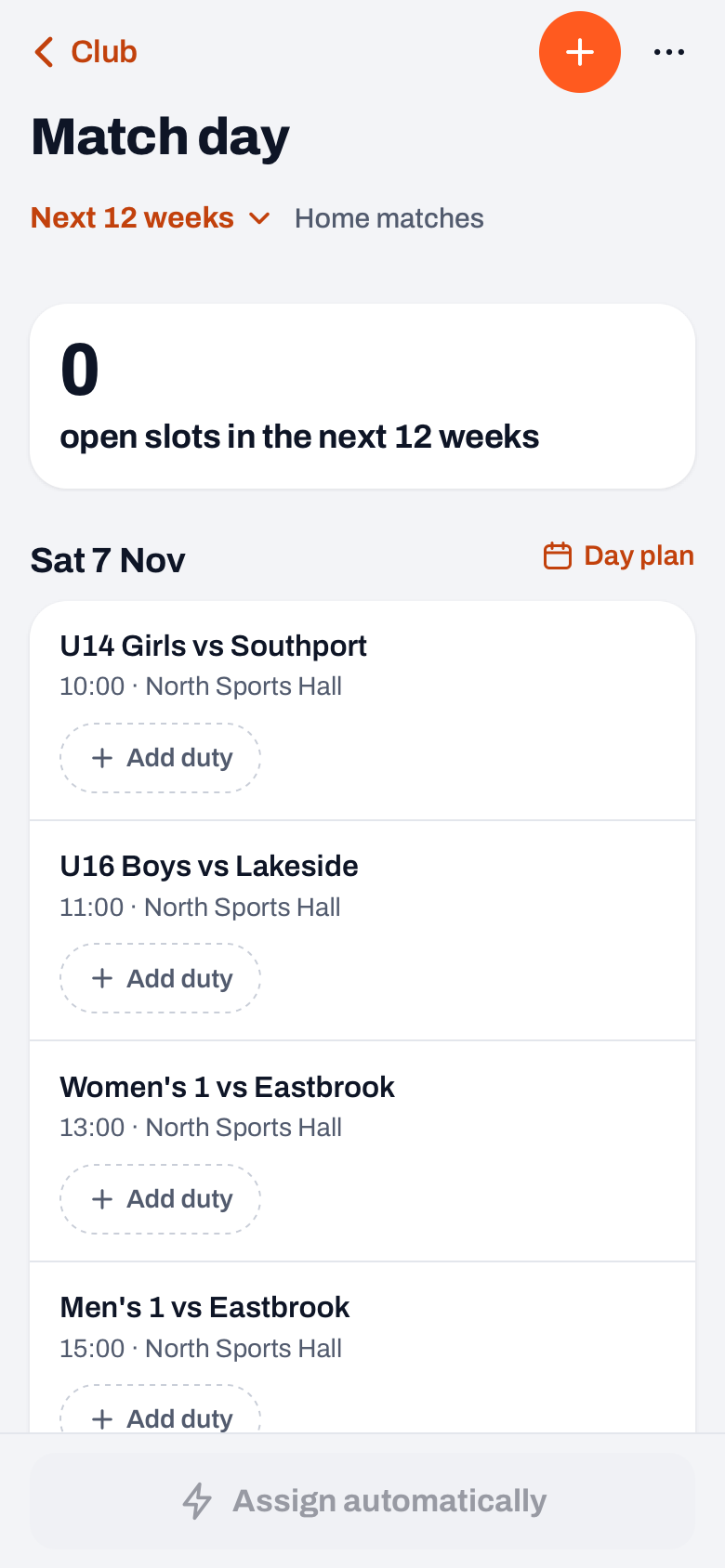
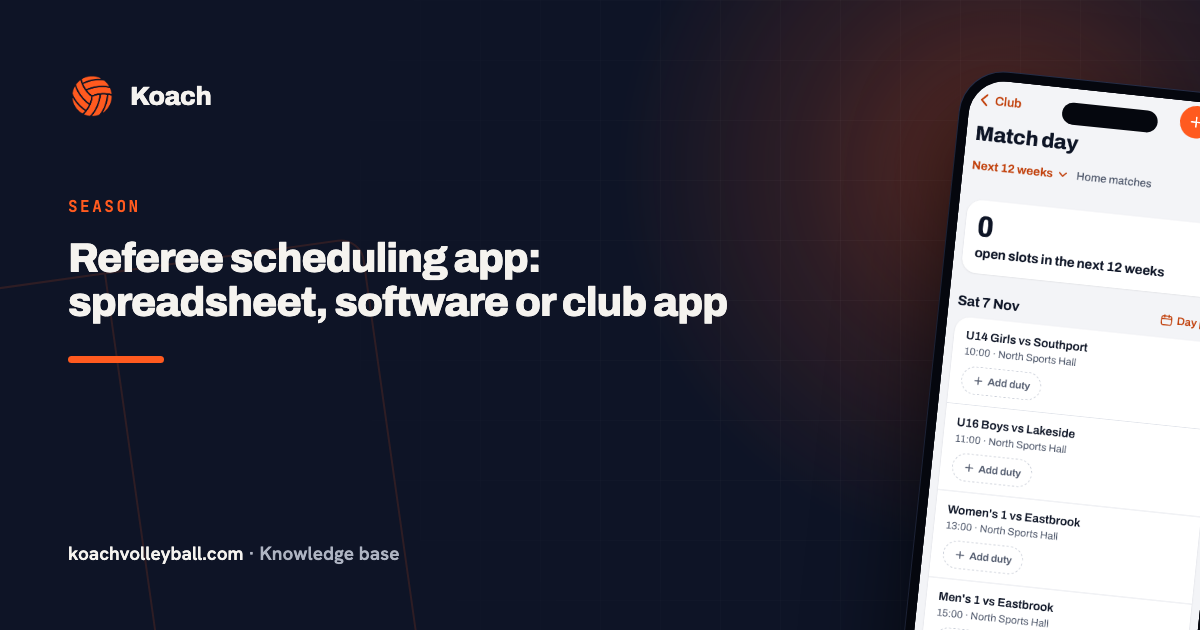
The Match day section in the club dashboard is about precisely those slots. It lists the home matches of all your teams underneath each other, grouped by date, with the time and the venue alongside. Away matches are left out and a cancelled match drops off the list: nobody needs to turn up for those any more. Under the title you choose how far ahead you are looking: 4 weeks, 12 weeks (the setting the screen opens on) or the whole season. That last setting looks forty weeks ahead, so practically a full playing year; 4 weeks leaves you with nothing but the next few match days. Below that, one number tells you how many slots are still open in that period, and every date carries a label with the number of open slots or Complete.
Next to every date there is also the link Day plan. It opens the plan for that day: per hall which team plays on which court and at what time, set against the hall booking, with buttons to assign the courts, to assign that day's officials in one go and to share the plan. That is worked out in organising home matches. With the + at the top right you add a home match, for instance for a team that does not use Koach itself.
Deciding for yourself which roles a match needs
Under every match sits one row of chips. A duty that is filled shows as a chip with the role and the name; a slot that is still open shows as a dotted orange chip, for example + Scorer. If a role you need for that particular match is missing, tap + Add duty: you pick the role first and then the person, and only then is the duty created, with that person in it. Dismiss the choice and nothing is created. Once all three roles are there, that chip disappears, so the same role can never end up on one match twice.
That looks like a detail, but it is the whole difference with a fixed rota that gives every match the same three lines. In practice not every match asks for the same thing. For a morning with four junior matches back to back you often put one hall duty down for the whole block and nothing else. For a match where the league appoints a referee itself, you only set up a scorer. And for the match that really matters, you put all three roles down. So you are not creating rota lines you then have to cross out again — you only set up what genuinely has to be filled.
What you set up becomes a duty with a name of its own, in the form Referee · Women's 1 - VC Zwolle, on the date and at the time of the match. Change your mind and you tap the chip and choose Delete this duty. The app asks for confirmation first: Delete this duty? Anyone assigned goes with it.
Picking somebody who is actually allowed to do it
Tap an open slot and choose Assign, and a list opens of the people you have registered as officials yourselves, with their level behind the name — so that for a first-team match you do not accidentally put down somebody who has only just refereed his first junior game.
More importantly, that list is already filtered per role. Under Referee you only see the people who have Can referee switched on, under Scorer only the ones with Can score. Anyone who is not allowed does not appear in the list at all — you cannot pick him by mistake. That is exactly where a spreadsheet lets you down: there all the names sit in one column and you have to remember yourself who is qualified for what. Hall duty has no such line; whoever is on the list can run the hall. Anyone who plays around that time sits at the bottom of the list with the reason after their name, for example plays at and the start time; you may still pick them.
One exception is worth knowing. If nobody at all has the tick for that role, the app shows the whole list anyway. Otherwise the button would do nothing and you would have no idea why. Get the ticks right and the list is right.
The list itself sits at the bottom of the same screen, under the heading Officials, with Add to put somebody on it. Tap a name to change their level, switch Referee or Scorer on or off, or remove them. As long as that list is empty there is nothing to assign, so it is the first step of this entire screen. Who belongs on that list and how you set the club dashboard up further is in from one team to the whole club. Somebody you assigned by accident comes off again by tapping his chip at the match.
The button that spreads the open slots
At the bottom of the screen sits Assign automatically; if there are no open slots or no officials yet, the button is greyed out. As with bar duties, whoever has had the fewest turns goes first. What works differently here — and what you want to know before you press it — is what that count runs over. The split does not only look at the weeks on your screen, but at every match-day duty scheduled from today onwards, including matches later in the season, outside the period you chose. Assign the whole season first and then top up a four-week block, and the person who was already put down three times in that first round simply counts as such. Without that wider count, somebody who is already full later in the season would start at the top of every new round.
A few more rules apply, and you notice them as soon as you read the rota back. Nobody gets more than two duties on the same day, and never two at matches that start less than two hours apart. Anyone who plays around that time, or has an away match or a tournament that day, is skipped. And the button only fills slots at roles you set up yourself: it does not invent duties. If something is left over afterwards, because there are too few people or too few people who are allowed to referee, that slot stays dotted and the label at the date shows you at a glance which days still need attention.
Before the button does anything the app asks for confirmation: a round of automatic assigning is not something you do by accident. After that the duty turns up in the calendar of the person assigned, in among his practices and matches, and that is also where he can pull out; the chip then says declined after his name and the slot counts as open again. A rota nobody has read is not a rota yet, so it is worth sending a club announcement after a round, asking people to take a look at their calendar.
A match-day duty and a bar duty are two separate things
This is the confusion that surfaces once at every club. A match-day duty and a bar duty are two separate duties in the app, even when they belong to the same match. Each has its own rota and its own assignment; the bar duties sit behind the button with three dots at the top right of Match day. The bar duty of that evening does show as a Bar chip at the match, with the names or the number of free spots. They also do not look at each other: in theory one person can be assigned to both at the same match — as scorer in the hall and behind the bar.
That is not a fault, because at plenty of clubs it is exactly what happens: score first, then the bar. But it does mean that on a busy match day you read the day through once before you send it out. The two rotas also differ in reach. Bar duties can be created for a whole year in one go with Fill new matches, while you assign the match day period by period, for the matches that are already in there.
Who builds the rota, and what you agree around it
The Match day section is not visible to everyone: it belongs to the people who manage the club dashboard, not to the coaches. Who those people are at your club and what else such a person may do is in managing your volleyball club. In practice it works best if one person builds this rota and one other person can take it over during the holidays — so that the question "who actually does this" never has to be asked on a Friday evening again.
What the app does not decide for you is the agreement underneath: whether a member is obliged to work a duty, how many duties that is per season, and whether you can buy your way out. That is policy the club sets first — the four ways of sharing out club jobs lay the choices out. If your club works with such an obligation, a match-day duty somebody has worked can count towards it; how heavily is for the club to decide, per type of duty.
Which makes the order that works best also the shortest one: first record who is allowed to referee and score, then set up the roles you genuinely need per match, and only then press the button. Whatever is still open after that is no longer a rota problem but a people problem — and that at least is the right conversation to be having. If you want to see the rest of the club work in Koach, from hall schedule to board roles, it is on the page for volleyball clubs.
In short: the button only fills slots that are already there. So set the roles up per match first and assign automatically afterwards, otherwise it looks as though nothing happened.
Frequently asked questions
What happens if I press Assign automatically twice?
Nothing gets overwritten. The button only looks at slots where nobody is standing yet and leaves the names that are already there alone, whether you picked them yourself or had them assigned in an earlier round. So you can safely use it again as soon as new matches or roles have been added.
I set a role up at the wrong match. Can I undo that?
Yes: tap the chip and choose Delete this duty. The app asks for confirmation first, because anyone already assigned goes with it and the duty then disappears from his calendar too. There is no undo afterwards: you simply set the role up again and assign again.
Does somebody get a message automatically when he is assigned?
No. The duty does appear in his own calendar in the app straight away, in among his practices and matches, but no separate email or notification goes out. If you want to be sure people have seen it, send a club announcement yourself after a round of assigning.
Why does Whole season not really show every match of the year?
The Whole season setting looks forty weeks ahead from today, not up to a fixed end date of the season. In practice that is nearly a full playing year; a match that lies further out slides into view by itself the next time you look.
 Electronic Volleyball Scoresheet vs Paper: Which Counts?
 How to Switch Team Management Apps Mid-Season Safely
 How to Get Your Team to Actually Use the Team App
 Referee scheduling app: spreadsheet, software or club app
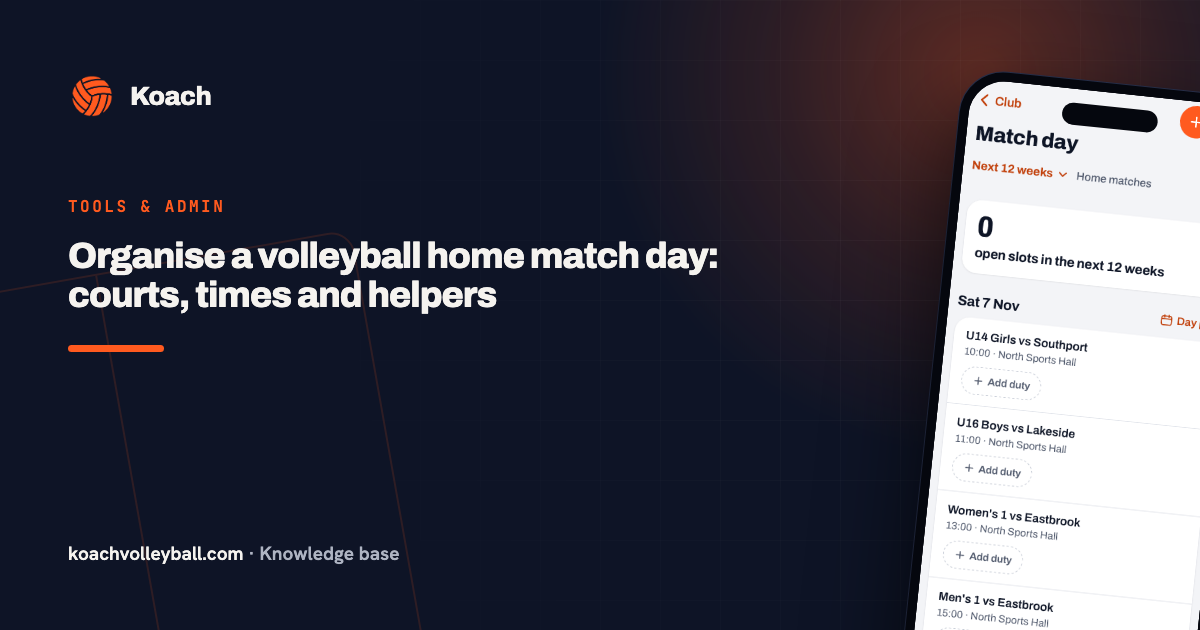 Organise a volleyball home match day: courts, times and helpers
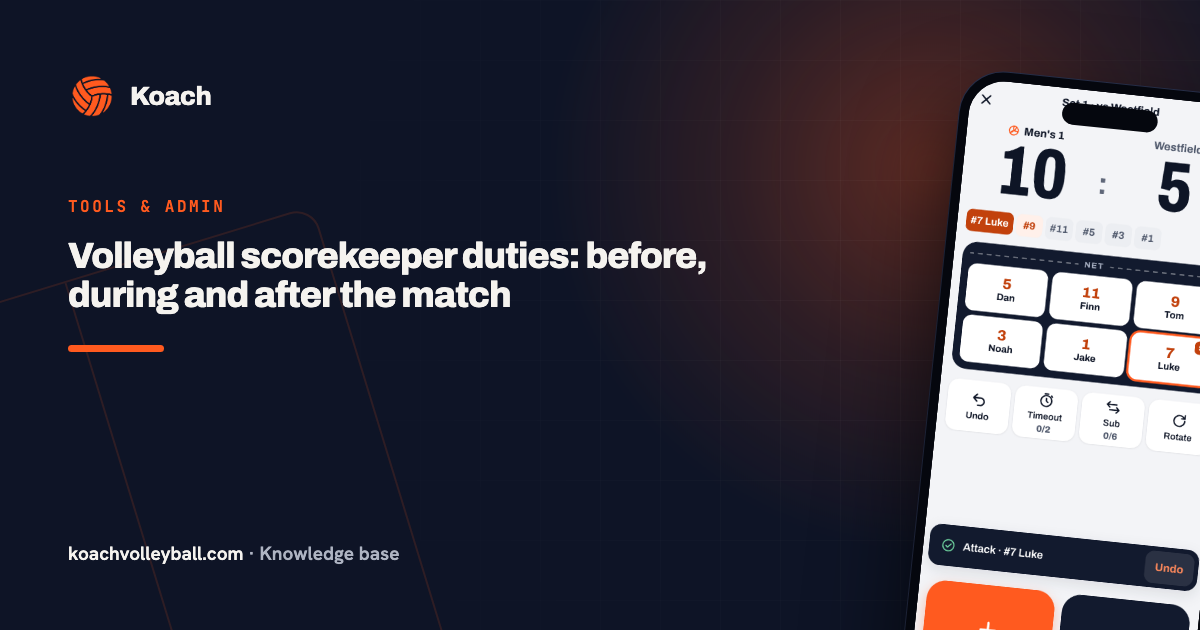 Volleyball scorekeeper duties: before, during and after the match
Try it yourself in Koach
Less admin, more coaching.
Get started with KoachOr read first what the volleyball coaching app does.